
ABS returns a number’s distance from zero. Negative numbers become positive; positive numbers and zero stay unchanged. Absolute value is different from locking a cell reference with dollar signs.
ABS function syntax
=ABS(value)- value: number or numeric expression to measure.
Set up the example data
Enter this small dataset starting in A1. The first row contains headers. Keep the formula output separate from the input cells.
| Actual | Forecast |
|---|---|
| 120 | 100 |
| 80 | 95 |
| 50 | 50 |
Find a difference’s magnitude
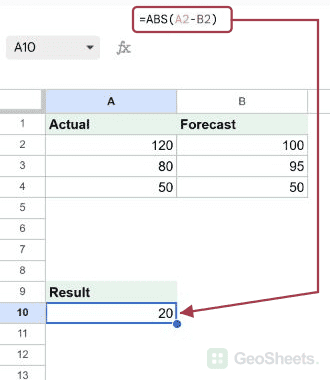
Enter this formula in A10. Subtracting forecast from actual gives twenty. Reversing the subtraction would change the sign but not its absolute value.
=ABS(A2-B2)Result: 20.
Convert a list to magnitudes
ARRAYFORMULA returns one magnitude for each input. Leave five output cells clear.
=ARRAYFORMULA(ABS({-5;12;0;-3.4;-100}))Result: 5; 12; 0; 3.4; 100.
Calculate absolute percentage error
The whole relative error is inside ABS, so a negative actual value cannot make the answer negative. Format 0.1 as a percentage to display ten percent.
=ABS((110-100)/100)Result: 0.1.
Keep the original direction when it matters
This returns the size of the fifteen-unit shortfall. Keep the signed difference alongside it if your report must distinguish overestimates from underestimates.
=ABS(A3-B3)Result: 15.
Other Google Sheets articles you may also like