
ASINH returns the number whose hyperbolic sine equals your input. It accepts negative numbers, zero and positive numbers. For example, ASINH(1) is approximately 0.8814.
ASINH function syntax
=ASINH(value)- value: the real number whose inverse hyperbolic sine you want.
- ASINH is the inverse of SINH. It is different from ASIN, the ordinary inverse sine.
- The mathematical real-input domain has no -1 to 1 restriction; spreadsheet calculations still use finite numerical precision.
Set up the example data
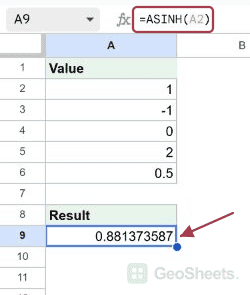
Enter this dataset starting in A1. The first row contains headings. Keep the result area separate from the source table.
| Value |
|---|
| 1 |
| -1 |
| 0 |
| 2 |
| 0.5 |
Calculate inverse hyperbolic sine
Enter this formula in A9. With 1 in A2, the result is approximately 0.881373587. This is the value that SINH maps back to 1, subject to numerical precision.
=ASINH(A2)Result (rounded for display): 0.881374.
Apply ASINH to a column
ARRAYFORMULA returns one result for each input in A2:A6. Keep five destination cells empty, and exclude the Value heading from the numeric input range.
=ARRAYFORMULA(ASINH(A2:A6))Result (rounded for display): 0.881374; -0.881374; 0.0; 1.443635; 0.481212.
Compare negative inputs and zero
For real inputs, ASINH is an odd function: the result for -1 is the negative of the result for 1. Zero returns zero.
=ASINH(A3)Result (rounded for display): -0.881374.
Reverse a SINH calculation
SINH first transforms 2, then ASINH recovers approximately 2. This demonstrates the inverse relationship directly without treating the result as an ordinary circle angle.
=ASINH(SINH(2))Result (rounded for display): 2.
Round the result to four decimal places
The input 0.5 is in A6. ROUND limits the returned value to four decimal places, giving 0.4812. Use number formatting instead if you only want to change its appearance.
=ROUND(ASINH(A6),4)Result (rounded for display): 0.4812.
Understand what DEGREES would change
DEGREES mechanically multiplies a value by 180/PI(). Applied to ASINH(1), it returns approximately 50.5. That calculation does not turn inverse hyperbolic sine into ordinary inverse sine.
=DEGREES(ASINH(A2))Result (rounded for display): 50.498987.
Other Google Sheets articles you may also like