If you have a cosine value and you want the angle that produced it, the ACOS function in Google Sheets gives you that angle back.
ACOS is the inverse of cosine. You feed it a number between -1 and 1, and it returns the matching angle in radians. In this article I’ll show you how it works with three examples, including how to switch the answer to degrees.
ACOS Function Syntax in Google Sheets
Here is how you write the ACOS function.
=ACOS(value)
- value – the cosine value you want the angle for. It must be between -1 and 1. Anything outside that range returns an error, since no real angle has a cosine beyond those limits.
When to Use ACOS Function
- Recover an angle when you only know its cosine.
- Solve triangles with the law of cosines from three side lengths.
- Work backward through trig formulas in geometry or physics problems.
- Calculate angles between vectors or directions from a dot product.
Example 1: ACOS of Values Returns Radians
Let’s start by running ACOS on a few cosine values.
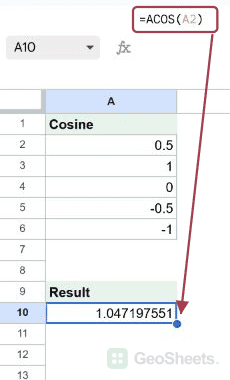
Below is the dataset, a column of cosine values in A2 to A6 ranging from 1 down to -1.

The goal is to get the angle that matches each cosine value.
Here is the formula:
=ACOS(A2)

The important thing to know is that ACOS returns the angle in radians, not degrees. So a cosine of 1 gives 0, and a cosine of 0.5 gives about 1.0472 radians.
A cosine of 0 returns about 1.5708, which is half of pi. A cosine of -1 returns about 3.1416, which is pi itself. If those numbers look odd, that’s because they’re radians, not the degree values you might expect.
Example 2: Convert the ACOS Result to Degrees
Most people think in degrees, so here’s how to convert.
Below is the same set of cosine values in A2 to A6, from 1 down to -1.

The goal is to get each angle in degrees instead of radians.
Here is the formula:
=DEGREES(ACOS(A2))

ACOS still does the work of finding the angle, but now DEGREES wraps around it and converts the radian result into degrees.
A cosine of 1 gives 0 degrees, 0.5 gives 60 degrees, and 0 gives 90 degrees. A cosine of -0.5 gives 120, and -1 gives 180. Much easier to read than the radian versions.
Pro Tip: Always wrap ACOS in DEGREES when you want a human-readable angle. Without it, every result stays in radians, which is fine for further math but confusing to read.
Example 3: Find a Triangle Angle With the Cosine Rule
Here’s where ACOS earns its keep, solving real triangles.
Below is the dataset, three side lengths per triangle in columns A, B, and C.

The goal is to find the angle opposite side c using the law of cosines.
Here is the formula:
=DEGREES(ACOS((A2^2+B2^2-C2^2)/(2*A2*B2)))

The piece inside ACOS is the law of cosines rearranged to give the cosine of the angle. ACOS turns that cosine back into an angle, and DEGREES makes it readable.
For the 3, 4, 5 triangle the result is 90 degrees, the right angle you’d expect. The 5, 5, 5 triangle gives 60 degrees since all angles in an equilateral triangle are equal, and the 6, 8, 10 triangle is another right angle at 90 degrees.
Tips & Common Mistakes
- ACOS returns radians by default. If you want degrees, wrap it in DEGREES, or you’ll misread every result.
- The input must be between -1 and 1. A value like 2 returns a #NUM! error because no angle has a cosine that large.
- Don’t confuse ACOS with COS. COS takes an angle and gives a cosine. ACOS goes the other way, taking a cosine and giving an angle.
ACOS is the function to reach for whenever you have a cosine and need the angle behind it. Pair it with DEGREES for readable results, and it handles everything from quick conversions to full triangle solving.
Try it on your own geometry or vector problems and let it do the inverse trig for you.
List of All Google Sheets Functions
Related Google Sheets Functions / Articles: