
BYROW applies a LAMBDA calculation to each row of a range. Use one formula to return row totals, averages, counts or joined text, with the results expanding automatically into neighboring cells.
BYROW function syntax
=BYROW(array_or_range, LAMBDA(row, expression))- array_or_range: the rows to process. Exclude headers unless your expression handles them.
- row: one placeholder representing the current row, such as r.
- expression: the calculation using that placeholder. Google documents one resulting value per row.
Set up the example data
Enter this dataset starting in A1. The first row contains headings. Keep the result area separate from the source table.
| Quiz 1 | Quiz 2 | Quiz 3 |
|---|---|---|
| 80 | 90 | 70 |
| 60 | 85 | 95 |
| 100 | 90 | 80 |
Sum each row with one formula
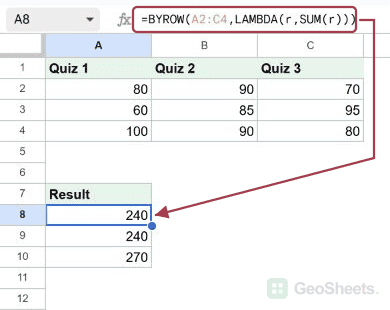
Enter this formula in A8. SUM receives each row of A2:C4 in turn, producing totals of 240, 240 and 270. Keep A8:A10 empty before entering it.
=BYROW(A2:C4,LAMBDA(r,SUM(r)))Result: 240; 240; 270.
Find the highest value in each row
Replace SUM with MAX to return each student’s highest quiz score. The output has one result per input row.
=BYROW(A2:C4,LAMBDA(r,MAX(r)))Result: 90; 95; 100.
Calculate each row’s average
AVERAGE calculates the mean of the numeric quiz scores in each row. Blank cells are ignored; a numeric zero is included.
=BYROW(A2:C4,LAMBDA(r,AVERAGE(r)))Result: 80; 80; 90.
Count scores of 80 or above in each row
COUNTIF counts the cells meeting the criterion within the current row. The three students have two, two and three qualifying scores respectively.
=BYROW(A2:C4,LAMBDA(r,COUNTIF(r,">=80")))Result: 2; 2; 3.
Join first and last names by row
Enter the names table at A20. TEXTJOIN combines the two cells in each row with a space, ignoring blank cells because its second argument is TRUE.
| First name | Last name |
|---|---|
| Maya | Chen |
| Leo | Patel |
| Ana |
=BYROW(A21:B23,LAMBDA(r,TEXTJOIN(" ",TRUE,r)))Result: Maya Chen; Leo Patel; Ana.
Avoid zero totals for truly blank rows
For this extended range, row 5 is empty. COUNTA checks whether each row contains an entry before calculating its sum. A genuine zero total from entered numbers remains zero.
=BYROW(A2:C5,LAMBDA(r,IF(COUNTA(r)=0,"",SUM(r))))Result: 240; 240; 270; (empty text).
Google documents a single result per row. In our test, returning the row itself also expanded multiple columns. The examples here follow the documented pattern; do not rely on nested outputs behaving uniformly.
Other Google Sheets articles you may also like