
Select the whole row first, then use the shortcut for your device. Deleting a row removes its cells and moves the rows below it upward.
Shortcut to Delete a Row in Google Sheets
| Device | Shortcut |
|---|---|
| Windows | Ctrl + Alt + - |
| Mac | ⌘ + Option + - |
| ChromeOS | Ctrl + Alt + - |
Google’s keyboard-shortcut reference lists these commands specifically for selected rows. The same keys delete selected columns when columns are selected instead.
How to Delete One Row Using the Shortcut
Pressing Delete or Backspace clears selected cell contents; it does not remove the sheet row. Use the row-deletion shortcut when you want the rows below to move up.
Our example has three tasks: Prepare agenda, Review figures, and Send report. We want to remove Review figures, which occupies row 3.
Click row number 3 to select the whole row.

Press the shortcut for your device.
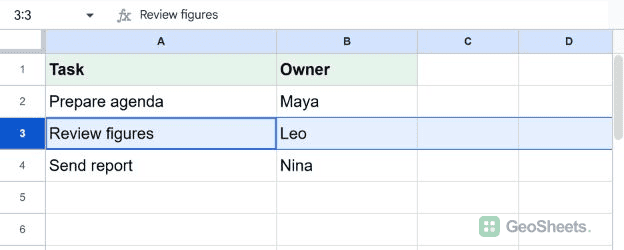
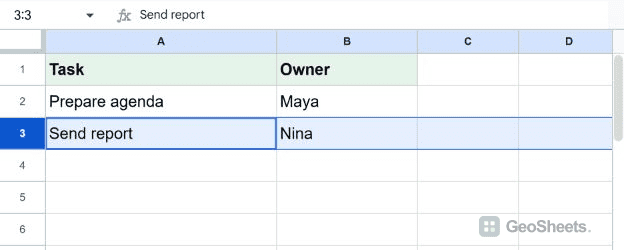
Review figures and Leo disappear. Send report and Nina move up from row 4 to row 3.
How to Delete Multiple Rows in Google Sheets
Drag across the row numbers to select the rows. Then press the same shortcut once. Google Sheets removes every selected row together.
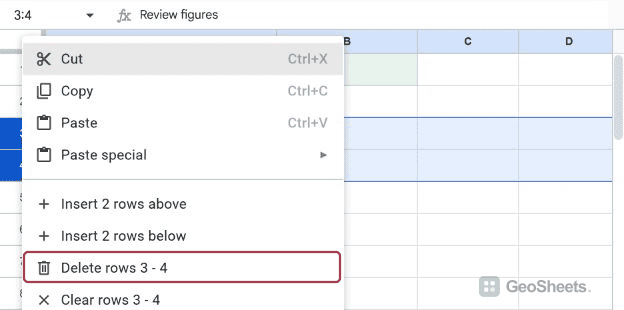
To remove rows 3 and 4, select both row numbers before pressing the shortcut. Both rows are deleted together.
You can also right-click the selected row numbers. Choose Delete row for one row, or the numbered option, such as Delete rows 3–4, for several.
Select the Whole Row from the Keyboard
With a cell selected, press Shift + Space. Check that the name box shows a whole-row reference such as 3:3 before deleting.
In our populated test range, the first press selected A3:B3. Pressing Shift + Space again expanded the selection to the whole row. Clicking the row number is another reliable option.
Other Google Sheets articles you may also like