
To insert a blank row in Google Sheets, select the whole row and press Ctrl + Alt + = on Windows or ChromeOS, or Command + Option + = on Mac.
The new row appears above the one you selected.
Shortcut to Insert a Row in Google Sheets
| Device | Insert a row above the selected whole row |
|---|---|
| Windows or ChromeOS | Ctrl + Alt + = |
| Mac | Command + Option + = |
The = key is the equals key. Keep the full row selected so Sheets inserts a row directly instead of asking how to insert individual cells.
How to Insert One Row Above
In this task list, we want to add a task between “Prepare agenda” and “Review figures.”
Click row number 3 on the left to select the entire row containing “Review figures.”

Hold Ctrl + Alt and press =. On Mac, hold Command + Option and press = instead.
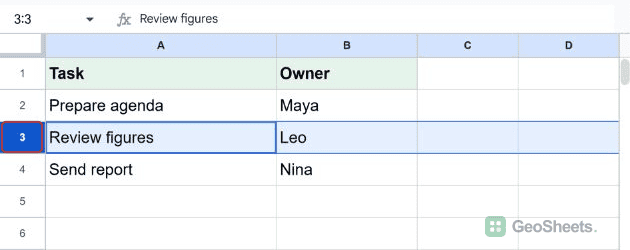
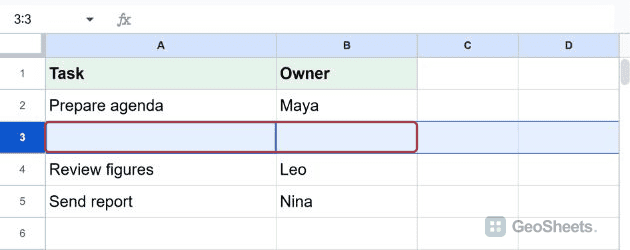
A blank row appears at row 3. “Review figures” moves to row 4, and “Send report” moves to row 5. You can now enter the new task in row 3.
Insert Multiple Rows Using the Shortcut
Select as many whole rows as you want to add, then use the same insert-above shortcut. For example, to add three rows before “Review figures,” start with the original list:
- Select row numbers 3 through 5 by dragging across them on the left.
- Press Ctrl + Alt + =, or Command + Option + = on Mac.
For a mouse alternative, right-click one of the selected row numbers and choose Insert 3 rows above.
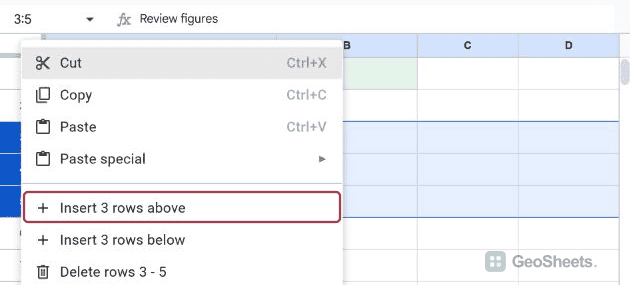
The new blank rows occupy rows 3, 4, and 5. “Review figures” moves to row 6, and “Send report” moves to row 7.
The menu’s row count follows your selection; Google’s instructions for adding rows cover this multiple-row method.
Insert Row Below Shortcut in Google Sheets
Click a cell in the row you want to insert beneath. In the original example, select A2 to add a blank row below “Prepare agenda.”
Use the sequence for your setup:
| Setup | Keyboard sequence |
|---|---|
| Windows, Google Chrome | Alt + I, then R, then B |
| Windows, other browsers | Alt + Shift + I, then R, then B |
| ChromeOS | Alt + I, then R, then B |
| Mac | Control + Option + I, then R, then B |
Release the first combination before pressing R and B separately. These open Insert → Rows → Insert 1 row below. The Mac sequence starts with Control, not Command.
These platform variations follow Google’s keyboard shortcut reference.
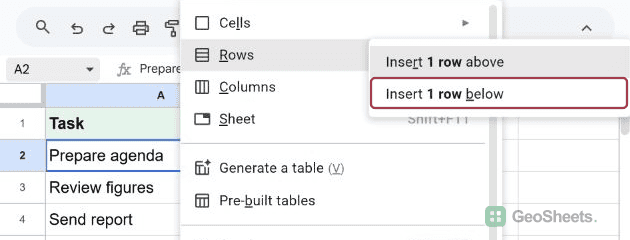
The blank row appears at row 3, between the two tasks.
How to Select a Whole Row with the Keyboard
Google lists Shift + Space as the select-row shortcut. Select a cell first, then check the name box for a reference such as 3:3.
In our populated test range, the first press selected only A3:B3. A second press selected the whole row. If necessary, click the row number before using the insert-row shortcut.
Other Google Sheets articles you may also like