
Copy the cells, select the destination, then press Ctrl + Shift + V on Windows or Command + Shift + V on Mac. Formula results become fixed values in the pasted cells.
Paste values only keyboard shortcut
Windows: Ctrl + Shift + V
Mac: Command + Shift + V
First copy with Ctrl+C on Windows or Command+C on Mac. Select cells rather than editing their text, so the paste applies to the grid.
Copy formula results to another range
- Select the source cells. In the example, use B2:B4.
- Copy the selection.
- Click B8, the top-left destination cell.
- Press the paste-values-only shortcut.
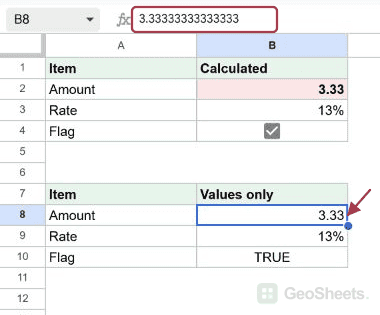
- Select a pasted cell and check that the formula bar contains a value rather than the original formula.
The source has =10/3, =0.125, and a checked checkbox. The destination contains the numeric results and the Boolean value TRUE.
The number 10/3 keeps its underlying precision, even though the cell displays 3.33. Paste values only does not round the stored value to the number of decimals you see.
Replace formulas in their original cells
- Copy the formula cells.
- Keep that same range selected.
- Use paste values only.
The replaced cells now hold a snapshot. They no longer recalculate from their former inputs. Other formulas can still recalculate from any live inputs they continue to reference.
Check number formats and validation
Google describes values-only paste as excluding source formatting. In our browser test, bold text and fill color were removed, but decimal and percentage number formats appeared at the destination.
Check the pasted cells and apply your intended number format explicitly. A displayed percentage such as 13% can still store 0.125 rather than 13.
A standard checkbox becomes Boolean TRUE or FALSE when its checkbox rule is absent at the destination. Those are logical values, not automatically text strings.
Existing destination validation may remain. Pasting TRUE into a cell that already had checkbox validation checked that box in our test. Dropdown behavior likewise depends on the destination’s rules.
Do not use this command as a guarantee that URLs become unclickable. Automatic link detection can affect the pasted result; inspect links separately when that matters.
Use the Paste special menu
After copying, select the destination and choose Edit > Paste special > Values only. The destination’s right-click menu also offers Paste special.
Browser clipboard restrictions can prevent menu-based pasting. Use the keyboard shortcut if that happens. Google documents Paste special for copying within one spreadsheet.
Format only copies appearance without replacing values. Formula only copies formulas instead of their calculated results. Conditional formatting only copies those formatting rules.
Other Google Sheets articles you may also like