
To unhide rows in Google Sheets, select the headings on either side of the gap, then use the shortcut below. The hidden data reappears in its original position.
Unhide row keyboard shortcut
Windows: Ctrl + Shift + 9
Mac: Command + Shift + 9
Select a range spanning the hidden row before pressing the shortcut. Use the 9 key above the letters. Keyboard layouts or system shortcuts can interfere.
Restore row 4 step by step
- Click the row number 3.
- Hold Shift and click 5 to select across the hidden gap.
- Press the shortcut for your computer.
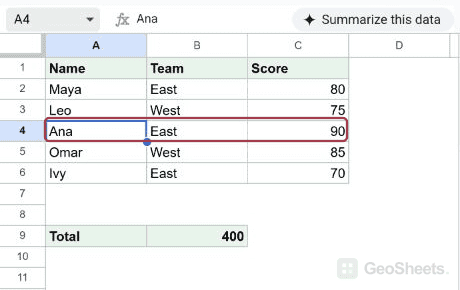
- Check that row 4 reappears between 3 and 5.
For this example, you can also enter 3:5 in the Name box and press Enter to select the required range.
The example restores Ana’s row, including her score of 90. The total remains 400.
Use the arrows or right-click menu
Look for the small arrows between the row numbers around the gap. Click an arrow to show the hidden rows there.
Alternatively, select across the gap, right-click a selected row heading, and choose Unhide rows. This is useful when the keyboard shortcut is intercepted.
Unhide every row in the sheet
- Click the blank square where the row numbers meet the column letters, at the top-left of the grid.
- Press the unhide row shortcut.
Selecting the whole sheet also handles a hidden row 1, where there is no visible heading before the gap.
When missing rows have another cause
A collapsed group uses a + control. Expand the group when you want to restore its contents while keeping the grouping structure.
Filters hide rows according to conditions. Adjust or remove the relevant filter, or exit the filter view, to display excluded records.
Freezing keeps rows visible while scrolling; it does not delete or hide their contents. Hiding and unhiding also leave stored values and ordinary cell references intact.
Other Google Sheets articles you may also like