
Select complete row headers, then choose View > Group > Group rows to create a collapsible section in Google Sheets.
On Windows, Alt + Shift + Right Arrow groups the selected rows. Use the minus and plus controls to collapse or expand their detail.
Group rows into a collapsible section
- Select the row numbers for the detail rows you want to group.
- Choose View > Group > Group rows 2-4, using the row numbers shown in your sheet.
- Click the minus control beside the bracket to collapse the group.
- Click the plus control to show the rows again.
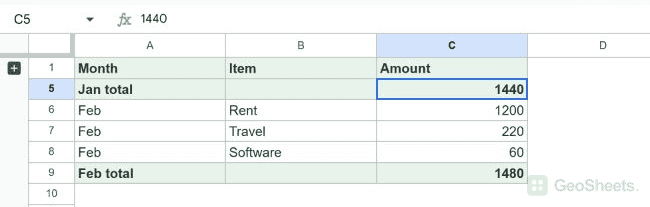
Our test grouped rows 2 through 4. Collapsing them kept the January total in row 5 visible.
Use the group-rows shortcut
Windows and ChromeOS
Alt + Shift + Right Arrow
Select the rows, then press the shortcut. We tested it on rows 6 through 8 in Chrome on Windows, and Sheets created a second row group.
Mac
Option + Shift + Right Arrow
Google documents this shortcut for Mac. We did not test it on a Mac.
The same shortcuts group columns when column headers are selected. The type of selection determines whether Sheets groups rows or columns.
Expand, collapse, or ungroup rows
- Click minus to collapse the group and plus to expand it.
- Press Alt + Shift + Up Arrow on Windows to collapse selected grouped rows.
- Press Alt + Shift + Down Arrow on Windows to expand them.
- Press Alt + Shift + Left Arrow on Windows to ungroup the selected rows.
In the live test, ungrouping rows removed the bracket and controls without deleting or changing their data.
Create nested row groups
Google Sheets can place a smaller group inside a larger one. Each outline level gets its own controls so readers can choose how much detail to show.
Build and test the inner group first, then select the wider row range and group it. Keep each subtotal outside the detail rows it summarizes.
Group rows or hide rows?
Grouping leaves plus and minus controls beside the rows. Use it when readers should switch between summary and detail.
Hiding removes the rows from view without an outline bracket. Use the hide-row method when a collapsible summary is unnecessary.
Google’s row and column grouping instructions cover grouping, ungrouping, and the plus and minus controls.
Other Google Sheets articles you may also like