
Select an entire row in Google Sheets with Shift+Space, or click its row number on the left. A whole-row selection includes cells beyond the visible data.
If Shift+Space selects only the populated part of the row, press it again. Check the name box above the grid: 3:3 means the whole third row is selected.
Select a row with the keyboard
- Click a cell in the row, such as B3. Leave cell-editing mode first.
- Press Shift+Space.
- If the name box shows a bounded range such as A3:C3, press Shift+Space again to select 3:3.
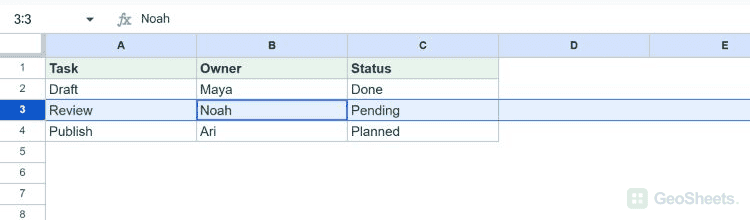
The shortcut is listed for Windows, Mac, and ChromeOS. In the Windows test, the first press selected A3:C3 and the second selected the full row.
Select a row with the mouse
Click the row number at the far left. Clicking a cell selects that cell; clicking the row header selects the entire row.
To select adjacent rows, drag over their row numbers or click the first row number and Shift-click the last. Check the highlighted row headers before applying a change.
Select an exact row range with the name box
- Click the name box to the left of the formula bar.
- Enter 3:5 to select rows 3 through 5.
- Press Enter.
Use A3:C5 instead if you want only those nine cells. This avoids applying a format or edit to unrelated columns in the selected rows.
Select separate rows
Hold Ctrl on Windows or Command on Mac while clicking the required row numbers. Release the modifier after the selections are made.
For actions that depend on a continuous block, such as certain sorts or merges, use a contiguous range instead. A selection alone does not move or delete data.
Leave a row selection
Click an ordinary cell or use an arrow key to return to a single-cell selection. If a shortcut types a space into a cell, press Escape to leave editing mode and try again.
See Google’s keyboard shortcut reference for the documented options.
Other Google Sheets articles you may also like