
Press Ctrl + Space in Google Sheets to select the entire column containing the active cell. Google lists this shortcut for Windows, ChromeOS, and Mac. On Mac, use Control, not Command.
Select an Entire Column with the Keyboard
- Click any cell in the column, such as C3. Finish editing the cell first if a text cursor is visible.
- Press Ctrl + Space. If it selects only the populated block, press it again to expand to the full column.
- Check that the column letter is highlighted and the selection covers the column.
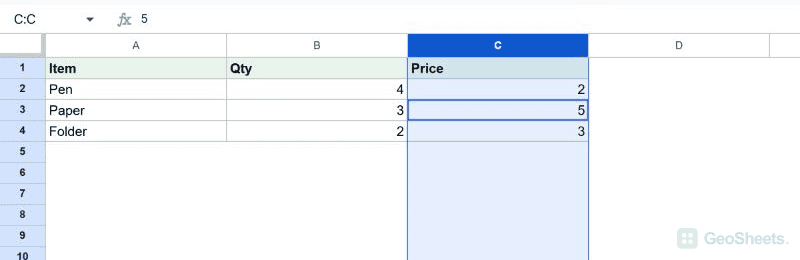
The selection includes the header, populated cells, and blank cells in that column. You can now apply a format or use another command on the selected column.
Selecting a column does not delete it. Pressing Delete clears cell contents; removing the column itself requires a column deletion command.
Select a Column with the Mouse or Name Box
Click the column letter at the top of the grid. You do not need to drag through every row. Frozen columns can be selected in the same way.
The name box to the left of the formula bar also accepts column references. Enter C:C and press Enter to select column C, or C:E to select columns C through E.
Select Multiple Columns
For adjacent columns, drag across their letters. Alternatively, select a range spanning those columns and press Ctrl + Space. Check the highlighted letters before applying a bulk change.
After selecting a full column, Shift + Right Arrow extends the selection toward the next column. Shift + Left Arrow extends or reduces it in the opposite direction, depending on the active edge.
For nonadjacent columns, hold Ctrl on Windows or Command on Mac while clicking each column letter. Release the modifier after you have selected the columns you need.
Hidden columns inside a selected span can be included. Unhide them before a bulk edit if you need to inspect everything the selection contains.
Select Only the Used Cells
A whole-column selection is different from a populated-range selection. If you only want C2:C20, enter that address in the name box or select those cells directly.
Starting in a data cell, Ctrl + Shift + Down Arrow extends the selection toward a data boundary.
Blank cells can change where it stops, so inspect the range rather than assuming it selected the whole column.
When Ctrl + Space Does Not Reach Sheets
Finish cell editing and make sure the spreadsheet has focus. If the operating system intercepts the shortcut, clicking the column letter or entering C:C in the name box avoids that conflict.
On Mac, Control + Space can be assigned to input-source switching. Check the relevant keyboard shortcut in System Settings if it changes the input source instead of selecting the column.
For an entire row, use Shift + Space. For the whole sheet, click the top-left corner where the row numbers and column letters meet.
Other Google Sheets articles you may also like