
Select adjacent columns and press Alt + Shift + Right Arrow on Windows, or Option + Shift + Right Arrow on Mac, to group them in Google Sheets.
Group adjacent columns
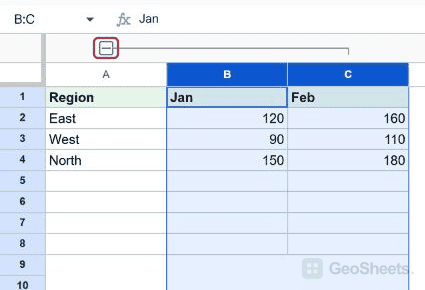
For the example, group columns B and C, which contain January and February values. A bracket and minus button appear above the column letters.
- Click the B column letter.
- Hold Shift and click C to select both columns.
- Press the group shortcut.
- Check for the bracket above B:C.
Collapse and expand the group
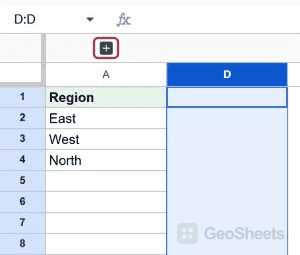
Click the minus button to collapse the group. Click its plus button to show the columns again. The underlying data and formulas remain available while the columns are collapsed.
Ungroup the columns
Expand the group and select its columns. Press Alt + Shift + Left Arrow on Windows, or Option + Shift + Left Arrow on Mac. Ungrouping removes the bracket without deleting the columns.
Use the context menu
Right-click the selected column letters. Look under View more column actions for Group columns. Select the full contiguous column range; a selection of separate ranges cannot be grouped as one continuous block.
Use nested groups deliberately
You can group a smaller adjacent range inside an existing group. Each group has its own control. Check which bracket you are collapsing or removing when multiple group levels overlap.
Choose grouping or hiding
Groups keep a visible plus/minus control for repeated collapse and expansion. Hiding columns is a simpler display change. Group rows when the details run vertically rather than across the sheet.
Other Google Sheets articles you may also like