
If you want to pull, filter, sort, or summarize data the way you would with a database, the QUERY function in Google Sheets handles all of it from a single formula.
You write a small SQL-like instruction inside the function, and QUERY returns the matching rows. The results spill into the cells below. In this article I’ll walk you through six examples, from a simple column pick to grouping and totals.
QUERY Function Syntax in Google Sheets
Here is how you write the QUERY function.
=QUERY(data, query, [headers])
- data – the range you want to run the query against, like A1:D6.
- query – the instruction string, written in Google’s Query Language. This is where you say what to select, filter, sort, or group.
- headers – optional. The number of header rows in your data. Pass 1 when your first row holds column labels.
When to Use QUERY Function
- Pull only certain columns out of a wider table.
- Filter rows by a condition, like salaries above a number.
- Sort results without touching the original data.
- Group rows and total a column, the way a pivot table would.
- Combine filtering, sorting, and limiting in one formula.
Example 1: Pick Specific Columns
Let’s start with the simplest job, grabbing just the columns you care about.
Below is the dataset, an employee table in A1 to D6 with columns for Employee, Department, Salary, and City.
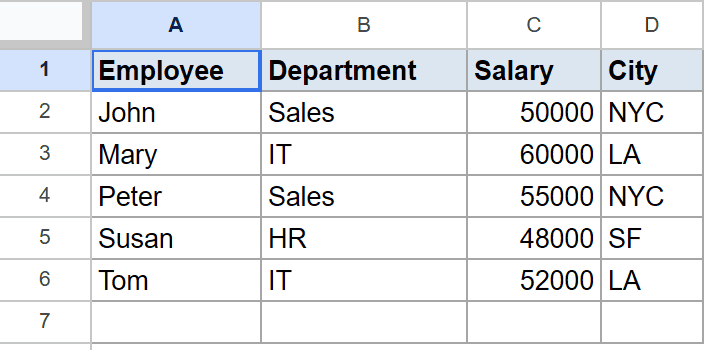
The goal is to return only the Employee and Salary columns.
Here is the formula:
=QUERY(A1:D6, "select A, C", 1)
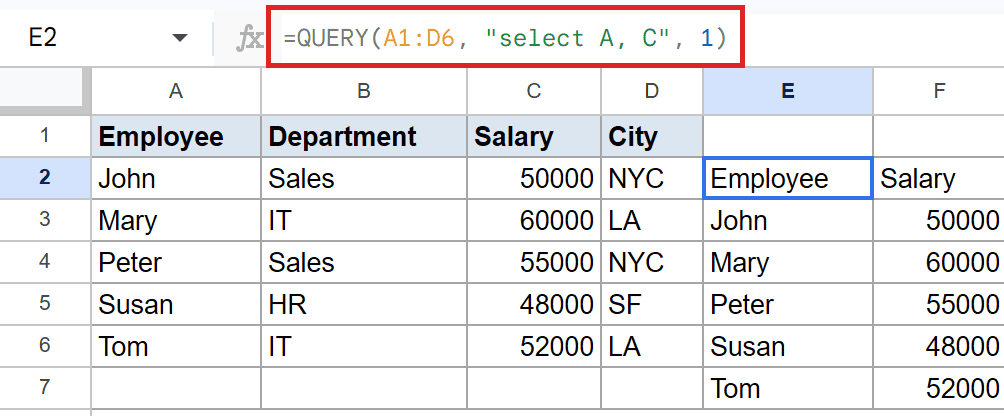
Inside the quotes, select A, C tells QUERY to return column A and column C only. The 1 at the end says the data has one header row.
The result keeps a header row, so you get Employee and Salary on top, then the five employees below with their salaries. The Department and City columns are left out.
Pro Tip: Columns are referenced by their letter inside the query string (A, B, C), not by the header name. The letters match the source range, not the output.
Example 2: Filter Rows With a Condition
Now let’s only keep rows that meet a test.
Below is the same employee table in A1 to D6, with Employee, Department, Salary, and City.
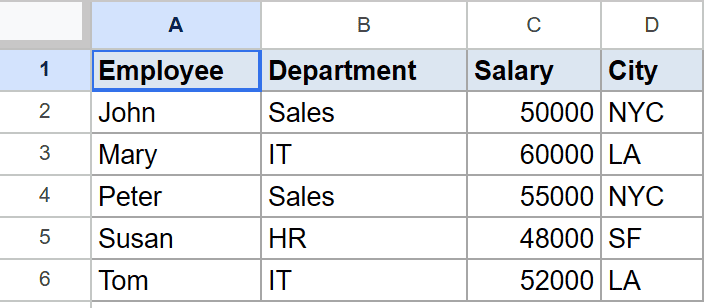
The goal is to show employees whose salary is above 50000, along with their salary.
Here is the formula:
=QUERY(A1:D6, "select A, C where C > 50000", 1)
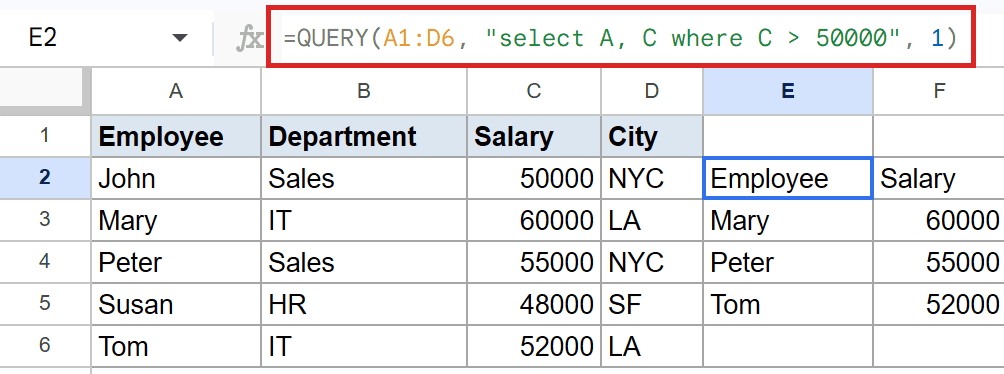
The where C > 50000 clause filters the rows before anything is returned. Only the employees clearing that bar make it through.
Under the Employee and Salary header, you get Mary, Peter, and Tom. The three of them earn more than 50000, while the others drop out.
Example 3: Filter, Then Sort
Here you can stack a filter and a sort in the same query.
Below is the employee table again in A1 to D6, with Employee, Department, Salary, and City.
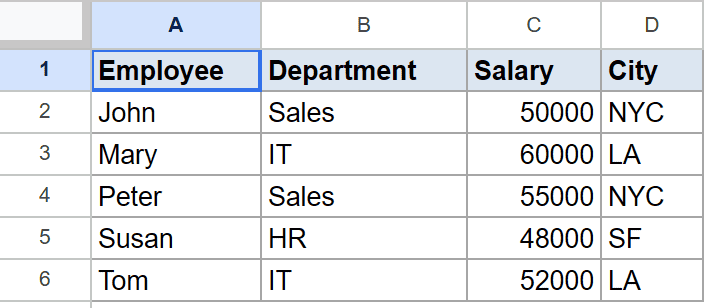
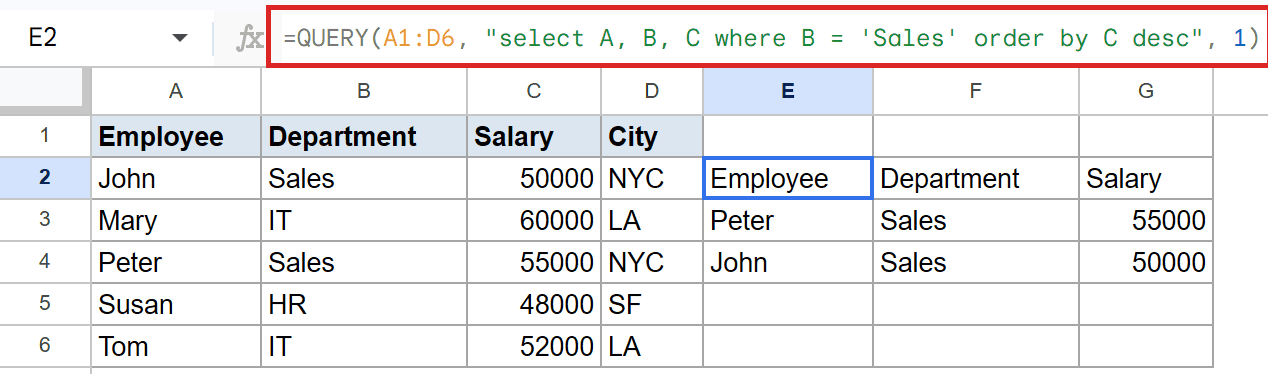
The goal is to list only the Sales team, sorted by salary from high to low.
Here is the formula:
=QUERY(A1:D6, "select A, B, C where B = 'Sales' order by C desc", 1)
How this formula works:
where B = 'Sales'keeps only rows where the Department is Sales. Text values inside the query go in single quotes.order by C descsorts what’s left by Salary, highest first.
Below the header, Peter shows first at 55000, then John at 50000. Both are in Sales, and the higher earner sits on top.
Example 4: Group and Total a Column
This is where QUERY starts acting like a pivot table.
Below is the employee table in A1 to D6, with Employee, Department, Salary, and City.
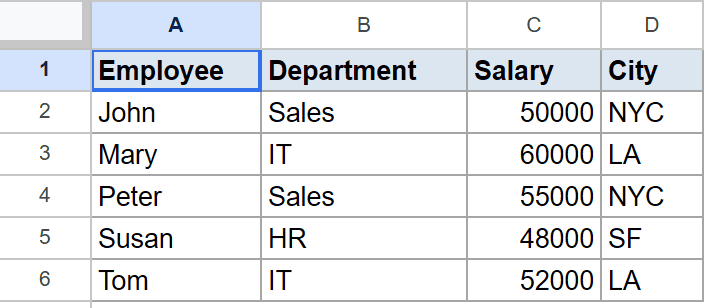
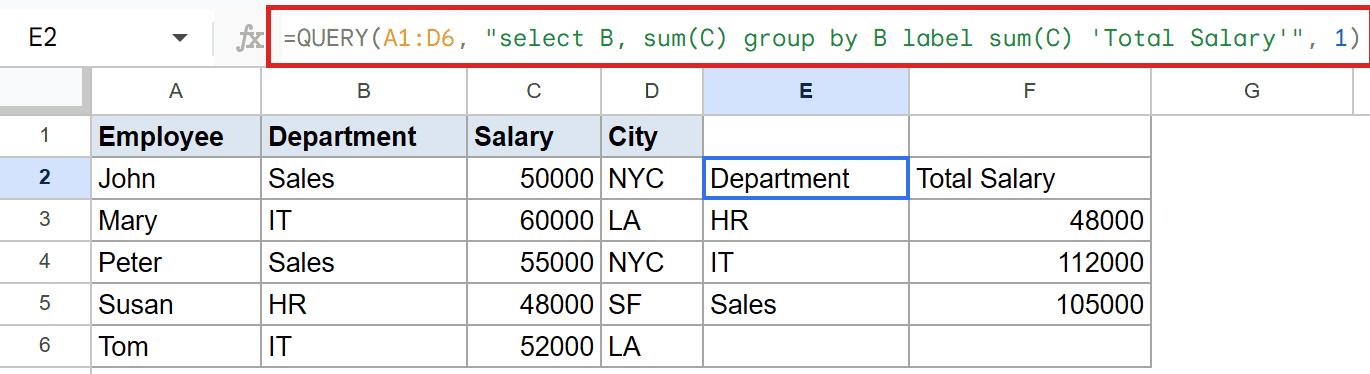
The goal is to total the salary for each department.
Here is the formula:
=QUERY(A1:D6, "select B, sum(C) group by B label sum(C) 'Total Salary'", 1)
How this formula works:
sum(C)adds up the Salary column.group by Brolls that total up per Department.label sum(C) 'Total Salary'renames the totals column header so it reads cleanly.
Groups come back sorted alphabetically by department. HR totals 48000, IT totals 112000, and Sales totals 105000, each under the Department and Total Salary headers.
Example 5: Sort and Keep the Top Few
Sometimes you only want the top handful of rows.
Below is the employee table in A1 to D6, with Employee, Department, Salary, and City.
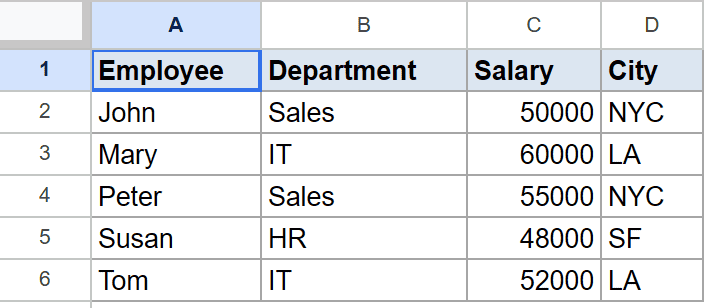
The goal is to show the three highest-paid employees and their salaries.
Here is the formula:
=QUERY(A1:D6, "select A, C order by C desc limit 3", 1)
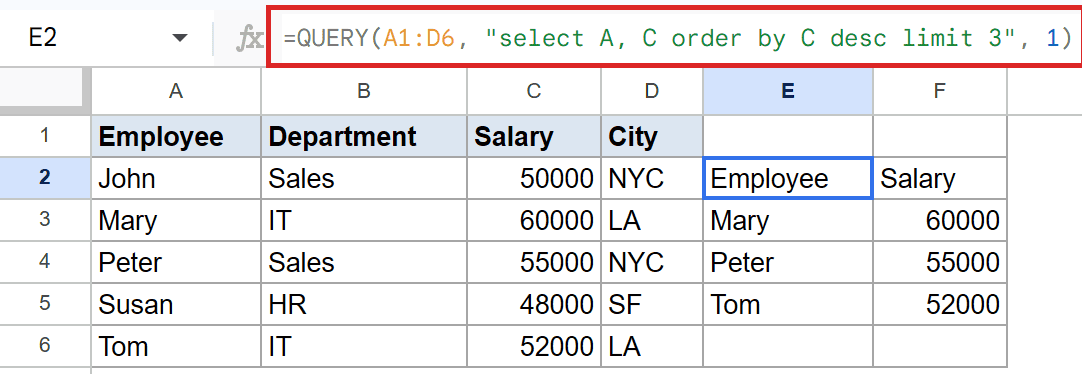
The order by C desc sorts everyone by salary from high to low. Then limit 3 cuts the list off after the first three rows.
You end up with Mary at 60000, Peter at 55000, and Tom at 52000 under the Employee and Salary header. The two lower earners get trimmed.
Pro Tip: The order of clauses matters. QUERY expects them in a set sequence, roughly select, where, group by, order by, then limit. Put them out of order and you’ll see a parse error.
Example 6: Combine Two Conditions
Let’s finish with a query that checks two things at once.
Below is the employee table in A1 to D6, with Employee, Department, Salary, and City.
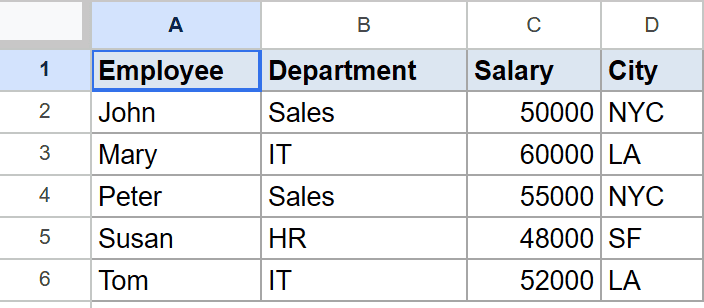
The goal is to find employees who earn over 50000 and are based in LA, showing their department and city.
Here is the formula:
=QUERY(A1:D6, "select A, B, D where C > 50000 and D = 'LA'", 1)
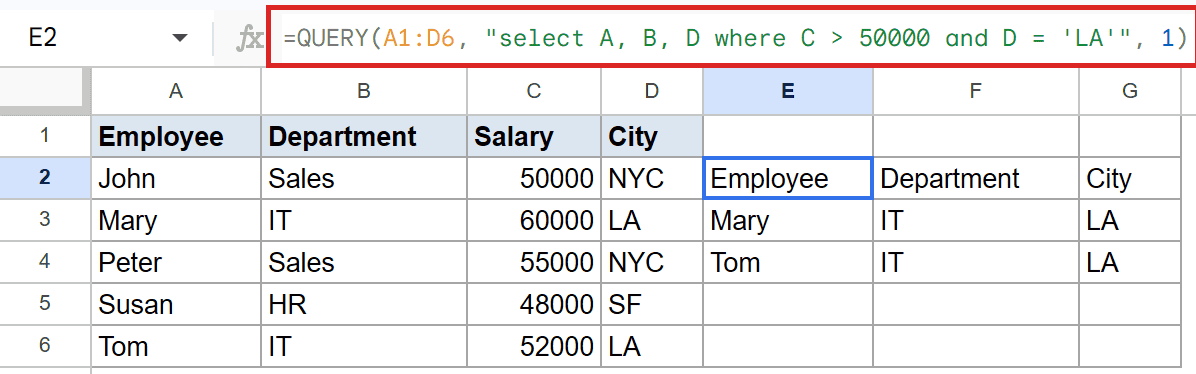
The and joins two conditions, so a row has to pass both. The salary has to clear 50000, and the city has to be LA.
Mary and Tom satisfy both tests. Under the Employee, Department, and City header, you see Mary in IT in LA and Tom in IT in LA.
Tips & Common Mistakes
- Reference columns by their source letter (A, B, C), not by the header text. The query language ignores your header names when you select.
- Wrap text values in single quotes inside the query, like
where B = 'Sales'. Numbers go in bare, with no quotes. - Keep your clauses in order: select, where, group by, order by, limit. A clause in the wrong spot throws a parse error instead of running.
QUERY packs filtering, sorting, grouping, and totals into one formula, so you rarely need to chain several functions together. Once the query language clicks, it becomes one of the most useful tools in Google Sheets.
Start with a plain select, then layer on a where or an order by as you get comfortable. The examples above cover most of what day-to-day work needs.
List of All Google Sheets Functions
Related Google Sheets Functions / Articles: