
If you want to break one piece of text into separate cells, like splitting a full name or a comma-separated line into its parts, the SPLIT function in Google Sheets handles it. You give it the text and the character to split on, and the pieces spill out across the row.
In this article, I’ll show you how to use SPLIT with a handful of examples, including splitting by different delimiters and handling empty values.
SPLIT Function Syntax in Google Sheets
Here is the syntax of the SPLIT function.
=SPLIT(text, delimiter, [split_by_each], [remove_empty_text])
- text – the text you want to split.
- delimiter – the character or characters to split the text on.
- split_by_each – optional. TRUE (the default) treats each character in the delimiter as its own separator. FALSE treats the whole delimiter as one unit.
- remove_empty_text – optional. TRUE (the default) drops empty pieces. Set it to FALSE to keep them.
When to Use SPLIT Function
- You have full names, addresses, or tags packed into one cell and want them in separate columns.
- You imported data where the values are joined by a comma, dash, or space.
- You need to break a code or ID into its component parts.
- You want a live split that updates whenever the source text changes.
Example 1: Split a Comma-Separated String
Let’s start with the most common case, breaking a line of text at its commas.
Below is the dataset, a single cell in A2 holding three values joined by commas.
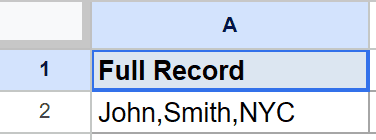
The goal is to pull each value into its own cell.
Here is the formula:
=SPLIT(A2, ",")
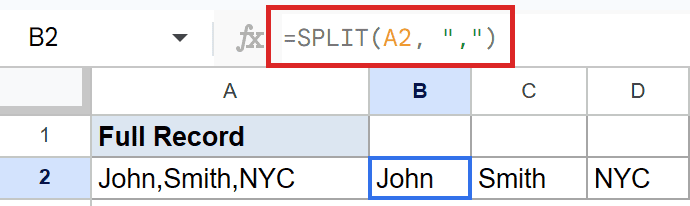
SPLIT scans the text and cuts it wherever it finds a comma. The three pieces, John, Smith, and NYC, spill across B2, C2, and D2.
Notice there is no leading space in front of Smith or NYC. SPLIT trims surrounding spaces from each piece by default.
Example 2: Split a Code by a Dash
The delimiter doesn’t have to be a comma. Here we split on a dash instead.
Below is the dataset, a single product code in A2 with its parts joined by dashes.
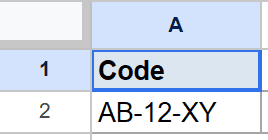
The goal is to separate the code into its three segments.
Here is the formula:
=SPLIT(A2, "-")
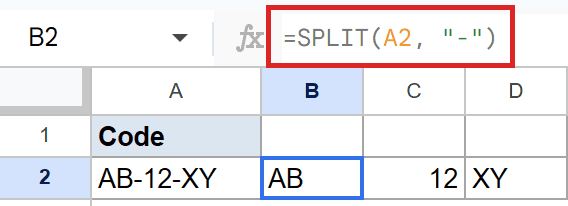
SPLIT cuts the text at each dash. The pieces land in B2, C2, and D2 as AB, then 12, then XY.
Note that the middle piece comes back as the number 12, not text, because it looks like a number. SPLIT keeps numeric pieces as numbers.
Example 3: Split a Whole Column at Once
When you have a column of values to split, you can do them all in one formula instead of copying it down.
Below is the dataset, a column of comma-separated color pairs in A2 to A5.
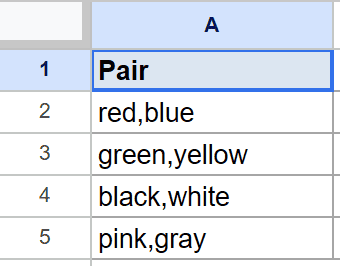
The goal is to split every row in the column in a single step.
Here is the formula:
=ARRAYFORMULA(SPLIT(A2:A5, ","))
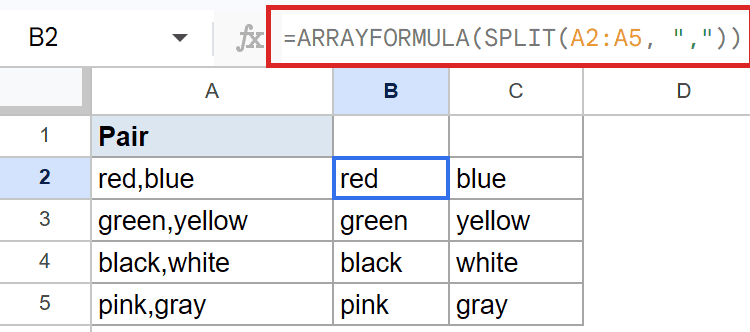
How this formula works:
- On its own, SPLIT only works on one cell at a time.
- Wrapping it in ARRAYFORMULA lets it run across the whole range A2 to A5 at once.
- Each row splits into its two colors, so red and blue land on the first row, green and yellow on the next, and so on down the block.
This saves you from entering a separate formula in every row.
Pro Tip: If you want a count of how many cells hold text after splitting, take a look at the Count Cells with Text tutorial for a quick way to do it.
Example 4: Split on Multiple Delimiters
You can pass more than one delimiter character, and SPLIT will cut on any of them.
Below is the dataset, a single string in A2 where the parts are separated by a mix of dashes, slashes, and spaces.
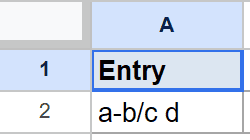
The goal is to break the string apart no matter which of those characters separates two parts.
Here is the formula:
=SPLIT(A2, "-/ ")
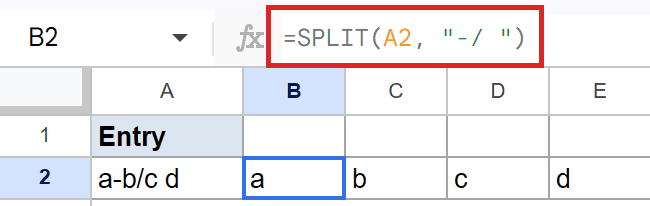
By default, the split_by_each argument is TRUE, so each character in -/ (dash, slash, and space) is treated as its own separator.
The string breaks into four pieces, a, b, c, and d, regardless of which character sat between them.
Example 5: Keep Empty Values Between Delimiters
By default SPLIT drops empty pieces. Sometimes you want to keep them so the columns line up.
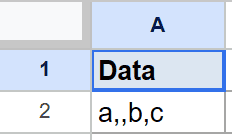
Below is the dataset, a single string in A2 that has two commas in a row, meaning one value is missing.
The goal is to split the text but keep a blank cell where the missing value should be.
Here is the formula:
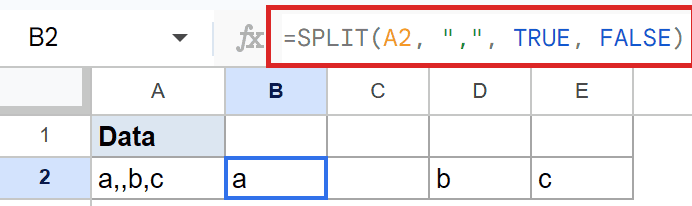
=SPLIT(A2, ",", TRUE, FALSE)
How this formula works:
- The third argument, TRUE, keeps the default behavior of splitting on each character.
- The fourth argument, FALSE, is the important one. It tells SPLIT to keep empty pieces instead of dropping them.
- Because of the double comma, the second piece comes back blank, so you get a, then an empty cell, then b and c. Without that FALSE, the blank cell would be removed and everything would shift left.
This matters when you need the output columns to stay aligned with a fixed layout.
Tips & Common Mistakes
- Leave room to the right. SPLIT spills its pieces across the row. If a cell in the path already has data, you get a #REF! error instead of the split.
- Watch the split_by_each default. With multiple delimiter characters, SPLIT cuts on each one separately by default. If you meant the whole string as a single delimiter, set the third argument to FALSE.
- Numbers stay numbers. A piece that looks like a number comes back as a number, not text. Keep that in mind if you plan to match or join the pieces later.
SPLIT is the quickest way to unpack text that’s been crammed into one cell. Between custom delimiters and the empty-value option, it handles most messy import jobs you’ll run into.
Give it a try the next time you need to break a cell into parts.
List of All Google Sheets Functions
Related Google Sheets Functions / Articles: