
The IMPORTHTML function pulls a table or a bulleted list from a public webpage straight into your sheet. Point it at a URL, tell it whether you want a table or a list, and it spills the data into the cells below.
It is handy for grabbing reference tables off Wikipedia, news headlines, sports standings, or any structured chunk of HTML that you would otherwise copy by hand.
IMPORTHTML Function Syntax in Google Sheets
Here is the syntax of the IMPORTHTML function.
=IMPORTHTML(url, query, index, [locale])
- url: the full public webpage URL, including
https://. - query: either
"table"or"list". - index: the 1-based position of the element you want on the page.
- [locale]: optional language or region code (for example
"en_US").
When to Use IMPORTHTML Function
A few common scenarios.
- Pulling a reference table from a Wikipedia article into your sheet.
- Grabbing a leaderboard or standings table from a sports site.
- Importing a list of headlines or product names that live in a bulleted list.
- Building a quick dashboard off any page that already has the data in a clean
<table>or<ul>.
Example 1: Import a Table from a Wikipedia Page
Let’s start by pulling a table off Wikipedia. The “List of Apollo missions” page has several tables, and we want the first one.
Below is the dataset. It is just a label in cell A1, since IMPORTHTML brings its own headers along with the data.
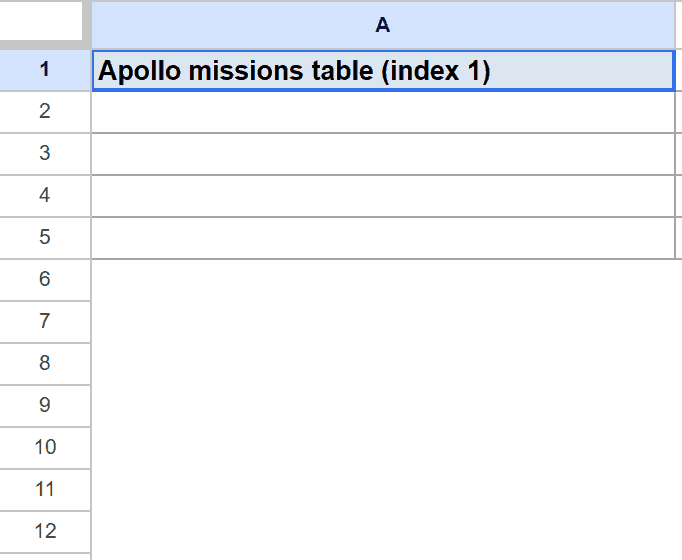
We want to spill the table into the sheet so we can browse it without leaving Google Sheets.
Here is the formula:
=IMPORTHTML("https://en.wikipedia.org/wiki/List_of_Apollo_missions", "table", 1)
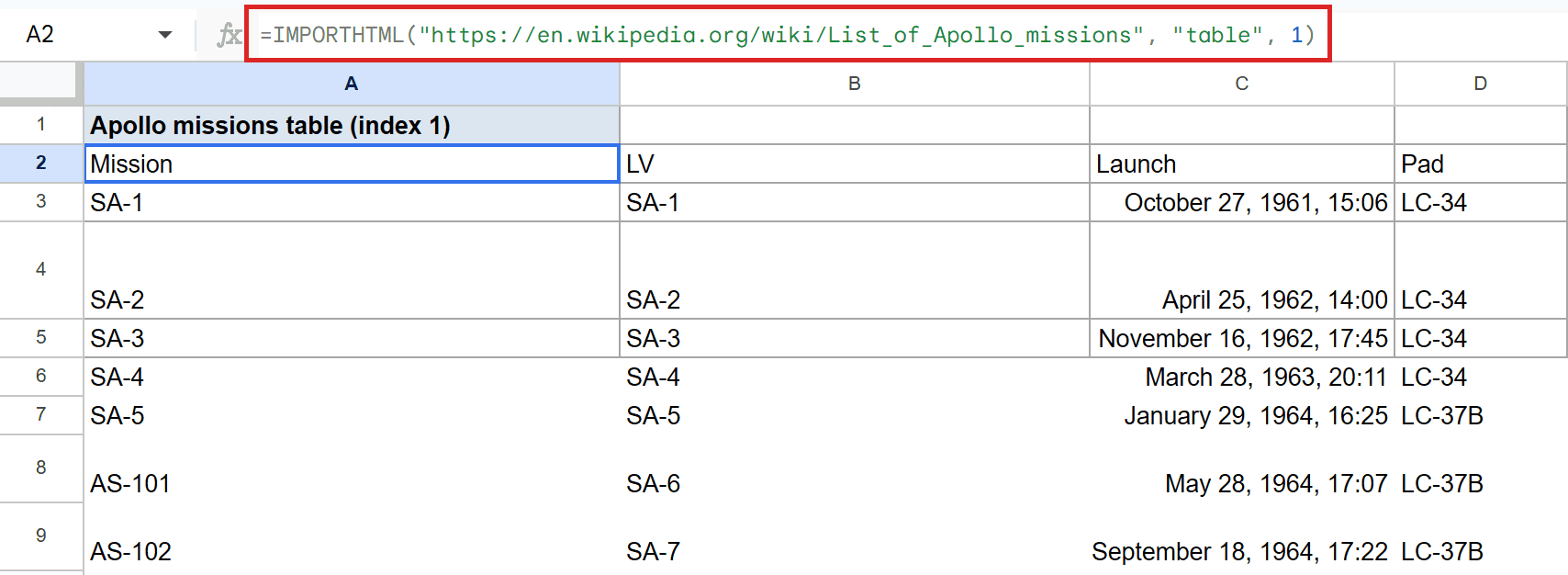
The formula spills the first table on the page, which covers the early Saturn I unmanned test launches. You get columns for Mission, LV, Launch, Pad, Remarks, and Refs, spanning eleven data rows.
One thing to watch: the Launch column comes back as raw date serial numbers (like 22581.6291). Google Sheets does not auto-apply a date format to imported cells, so wrap the column in TEXT to get readable dates, or select the column and apply a date format manually.
Pro Tip: If the source page later adds or removes a row, your sheet updates the next time IMPORTHTML refreshes. Treat it as a live view of the page, not a frozen snapshot.
Example 2: Pick a Different Table With the Index Argument
The third argument decides which table you pull. Switch it from 1 to 2 to grab the second table on the same page.
Below is the dataset, again a single label in A1.
We want to import the second table from the same Apollo missions page.
Here is the formula:
=IMPORTHTML("https://en.wikipedia.org/wiki/List_of_Apollo_missions", "table", 2)
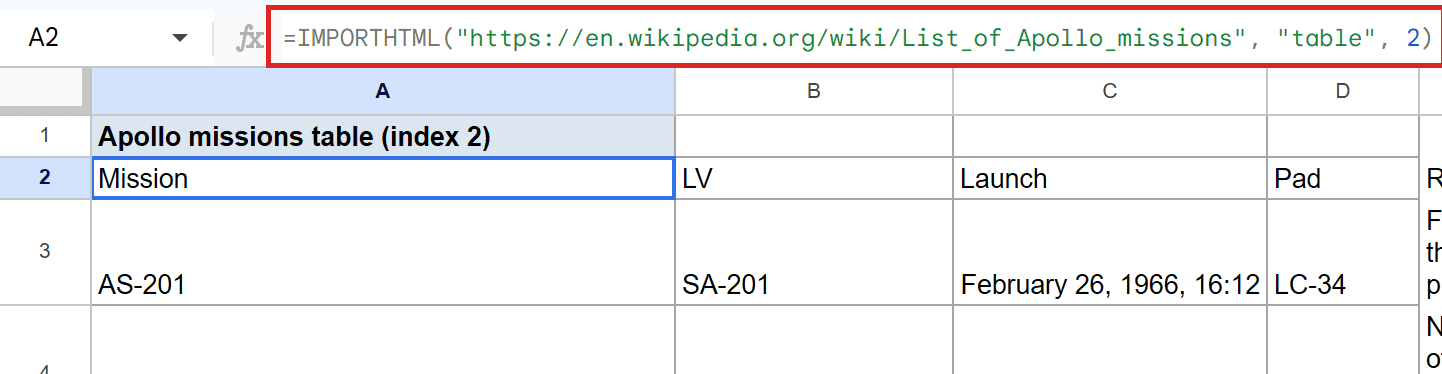
The second table covers the Saturn IB missions, including AS-201, AS-203, AS-202, and Apollo 5. The shape matches Example 1 since both tables share the same Mission, LV, Launch, Pad, Remarks, Refs schema.
The same date-serial caveat applies to the Launch column. Format the column as a date or wrap the formula with TEXT if you want readable launch dates.
Example 3: Import a List From a Page
You can switch the second argument from "table" to "list" to pull a bulleted list instead. Heads up: this example is also a useful lesson in how the index argument behaves on real pages.
Below is the dataset, a single label in A1.
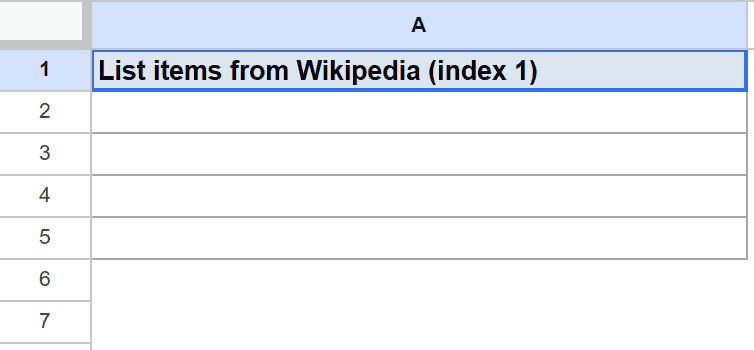
We want to grab the first list on the “List of sovereign states” Wikipedia page.
Here is the formula:
=IMPORTHTML("https://en.wikipedia.org/wiki/List_of_sovereign_states", "list", 1)
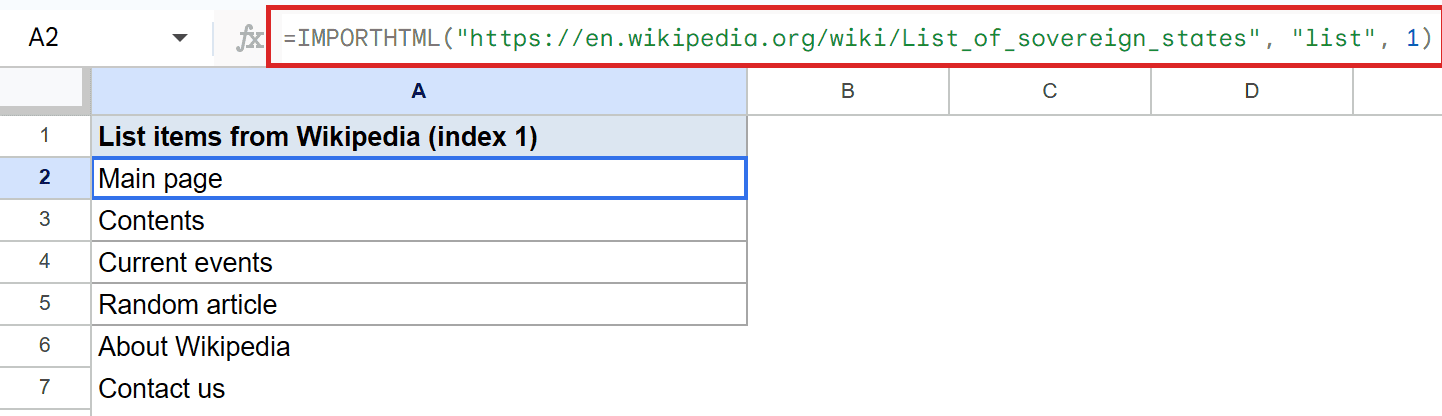
You might expect the first list to be the list of countries. Instead the spill contains Wikipedia’s sidebar nav: Main page, Contents, Current events, Random article, About Wikipedia, Contact us.
That is the IMPORTHTML index gotcha. On most modern websites the first <ul> on the page is the site navigation, not the article content. The fix is to try 2, 3, 4, and so on until you land on the list you actually want.
Pro Tip: Inspect the page in your browser with right-click then Inspect to count where the content list sits in the page order. It saves you from guessing the index one number at a time.
Example 4: Pull Just One Column With INDEX
If you only need one column of the imported table, wrap IMPORTHTML in <a href=”https://geosheets.com/google-sheets-function/match/”>INDEX</a> with a row argument of 0. That tells INDEX to return every row of a single column.
Below is the dataset, a single label in A1.
We want only the LV (launch vehicle) column from the first Apollo table, not the whole grid.
Here is the formula:
=INDEX(IMPORTHTML("https://en.wikipedia.org/wiki/List_of_Apollo_missions", "table", 1), 0, 2)
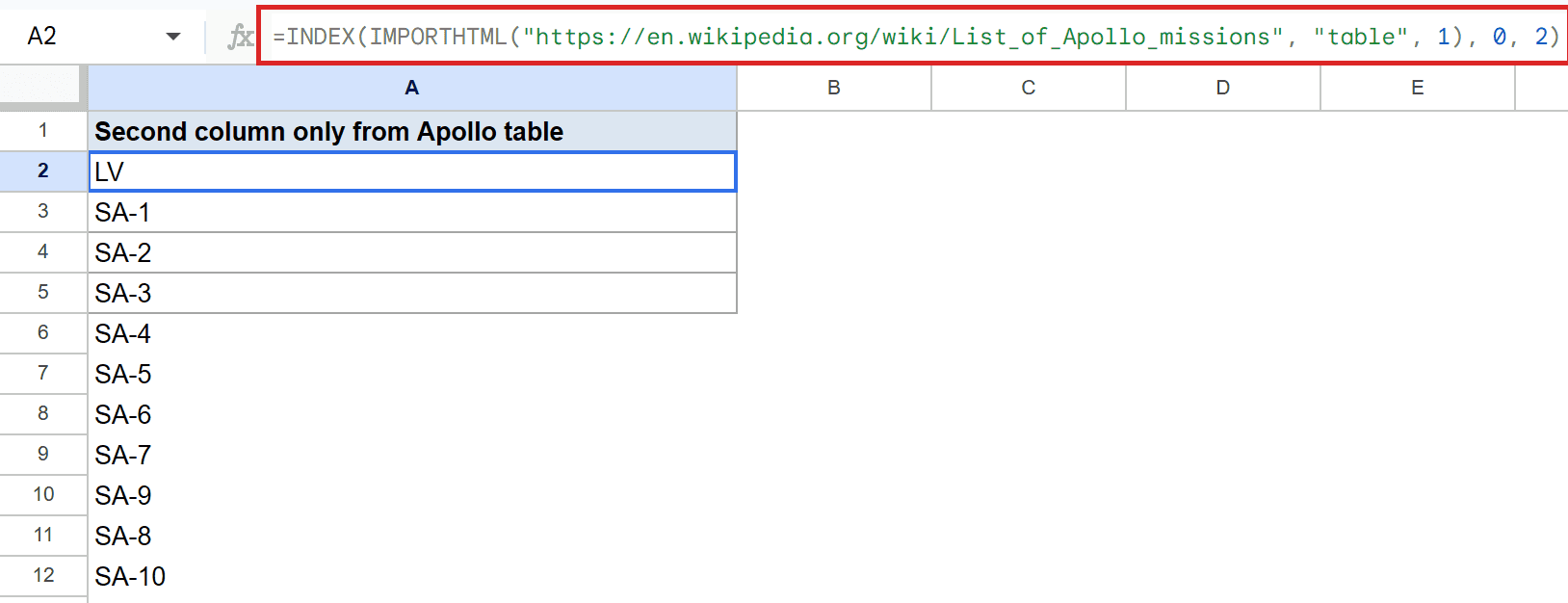
The 0 as the row argument tells INDEX to keep every row, and the 2 picks column 2 of the imported table. The spill covers the LV header plus values like SA-1, SA-2, all the way to SA-10.
This pattern is useful when the page has a wide table but you only care about one slice of it. You skip the column trimming step entirely.
Tips and Common Mistakes
- The
#REF!external fetch error. New API-built sheets sometimes show#REF! (Please use a desktop web browser to allow access to fetch data from external urls.)even though the formula is correct. Open the sheet in real Chrome on a desktop once and the fetch will start working. - The first
<ul>is usually the site nav. As Example 3 shows, on Wikipedia and most modern sites the first list is the navigation menu, not article content. Bump the index argument up until you find the list you actually want. - The page can change under you. IMPORTHTML reads the live HTML, so if the source page rearranges its tables, renames a heading, or drops the table entirely, your formula might return different data or break. Add a sanity check column if you depend on it for anything important.
The IMPORTHTML function gives you a quick way to bring webpage tables and lists into Google Sheets without copy-paste. Once you know how to count the index on a page, you can plug into almost any public source.
For richer scraping that targets specific elements with XPath, look at IMPORTXML. For pulling data from other Google Sheets, use <a href=”https://geosheets.com/google-sheets-function/importrange/”>IMPORTRANGE</a>.
List of All Google Sheets Functions
Related Google Sheets Functions / Articles: