
If you have a column of numbers stored as text and you need them to behave like real numbers, the VALUE function in Google Sheets is the conversion tool.
It reads the text, parses out the number, and returns it as a numeric type you can sum, average, and feed into other math. In this article, I’ll show you how to use VALUE to convert plain numeric strings, currency, percentages, dates, and times.
VALUE Function Syntax in Google Sheets
Here is how the VALUE function is written:
=VALUE(text)
- text is the string or cell reference you want to turn into a number.
If the text contains characters that aren’t part of a number (like a dollar sign or a comma), VALUE returns #VALUE!. The fix is to strip those characters out with SUBSTITUTE first, then pass the cleaned text to VALUE. Example 2 below shows the pattern.
When to Use VALUE Function
- Convert numbers stored as text (often the case for exported CSVs or pasted data) so you can SUM or AVERAGE them.
- Pull a percentage out of a string and use it in a calculation.
- Turn an ISO date string into the date serial Google Sheets actually uses.
- Convert a time string to the fractional-day form used for time math.
- Force a type conversion when a downstream function strictly requires a number.
Example 1: Convert Plain Numeric Strings To Numbers
Let’s start with the simplest case, numbers that look like numbers but are stored as text.
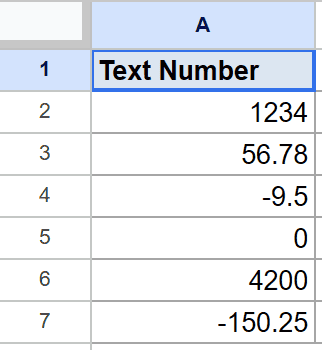
Below is the dataset, with text-formatted numbers in column A, across rows 2 to 7. Each cell holds a digit string (some with a decimal point, some negative) but the data type is text.
You want a column of real numbers you can do math on.
Here is the formula:
=VALUE(A2)
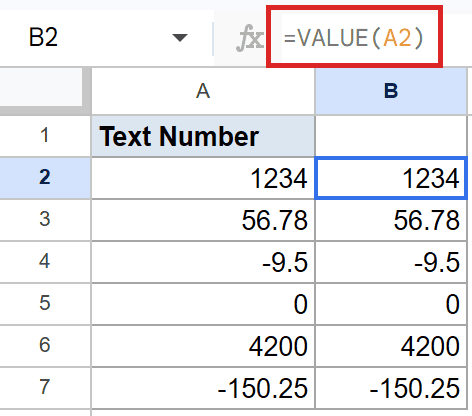
VALUE parses the text and returns the equivalent number. The first row becomes 1234, the second becomes 56.78, and the negatives come back as negatives. The result aligns to the right of the cell, which is the visual cue that the value is now numeric rather than text.
You can spot text-formatted numbers in your sheet because they line up against the left edge instead of the right. Run them through VALUE and they switch to the right edge, signaling they’re now real numbers.
Pro Tip: You often don’t need VALUE at all. Multiplying a text-formatted number by 1, or adding 0 to it, also forces Google Sheets to coerce it to a number. Reach for VALUE explicitly when you want the conversion to be obvious in the formula, or when a function strictly requires a numeric argument.
Example 2: Convert Currency Strings To Numbers
This is the case that catches people out. Google Sheets’ VALUE does not auto-strip currency symbols and thousands separators the way you might expect, so you have to clean those out first.
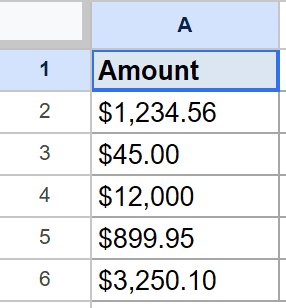
Below is the dataset, with dollar-formatted strings in column A, across rows 2 to 6. Each cell carries a $ prefix and most have a comma as a thousands separator.
You want each amount as a plain number you can add up.
Here is the formula:
=VALUE(SUBSTITUTE(SUBSTITUTE(A2,"$",""),",",""))
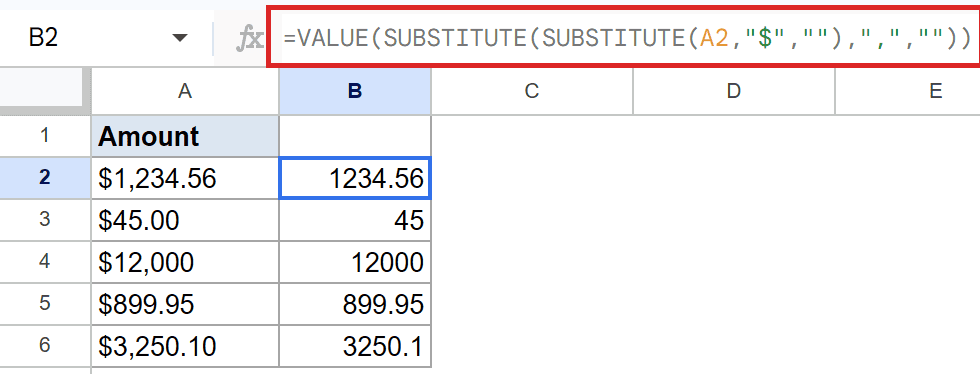
How this formula works:
- The inner SUBSTITUTE removes the
$sign from the string. - The outer SUBSTITUTE removes the
,thousands separator. - VALUE then receives a clean digit string and parses it into a number.
So $1,234.56 becomes 1234.56, and $12,000 becomes 12000. Wrap this pattern around any column that mixes currency symbols and digits and the math will start working.
If you skip the SUBSTITUTE calls and feed $1,234.56 straight into VALUE, the formula returns #VALUE! because of the symbols. Stripping them first is the standard fix.
Example 3: Convert Percentage Strings To Decimals
Percentages are one case where VALUE does handle the symbol gracefully.
Below is the dataset, with percentage strings in column A, across rows 2 to 6. Each one ends with a % sign.
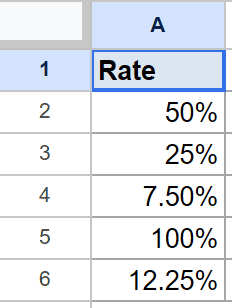
You want the decimal equivalent of each rate so you can multiply with it later.
Here is the formula:
=VALUE(A2)
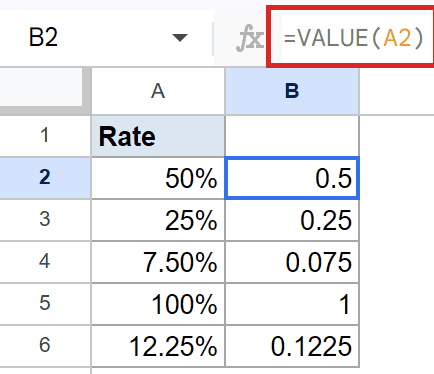
VALUE recognises the % sign and divides by 100 as part of the conversion. So 50% comes back as 0.5, 25% as 0.25, and 7.5% as 0.075. The result is a plain decimal, ready for multiplication.
The cell may still display the result as a percentage if its formatting is set that way. The underlying value is the decimal, which is what you want for math. To see the raw decimal, set the result cell’s format to Number.
Example 4: Convert Date Strings To Date Serial Numbers
Google Sheets stores dates as serial numbers under the hood. VALUE takes an ISO date string and hands back the matching serial.
Below is the dataset, with ISO date strings in column A, across rows 2 to 6. Each one is in YYYY-MM-DD format.
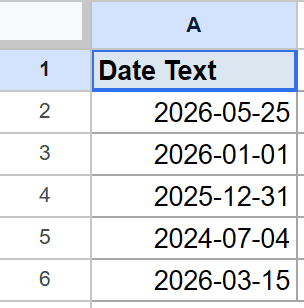
You want each date as the underlying serial number Sheets uses for date math.
Here is the formula:
=VALUE(A2)
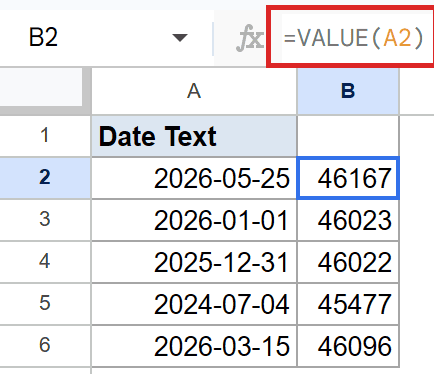
VALUE parses the date string and hands back the underlying serial. You’ll see a five-digit number in each result cell. That serial counts the number of days since the epoch Sheets uses for dates.
To see the date instead of the serial, change the result column’s format to Date. The underlying value doesn’t change, only the display. DATEVALUE is the more conventional pick for date strings, but VALUE handles them too.
Example 5: Convert Time Strings To Time Fractions
Times also have an underlying numeric form. They sit between 0 and 1, expressing a fraction of a 24-hour day.
Below is the dataset, with 24-hour time strings in column A, across rows 2 to 6.
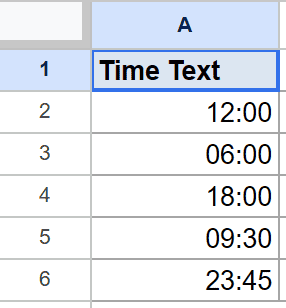
You want the fractional-day form of each time so you can add and subtract them.
Here is the formula:
=VALUE(A2)
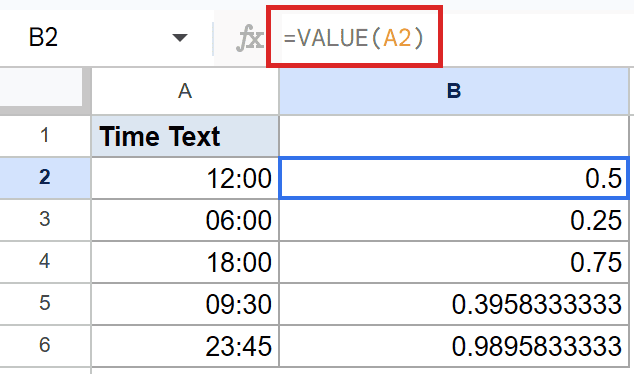
VALUE reads the time string and hands back the fraction of a day it represents. So 12:00 (noon) becomes 0.5, 06:00 becomes 0.25, and 18:00 becomes 0.75. The afternoon and evening times come back as longer decimals.
Once the times are in this fractional form, you can subtract one from another to get the gap between them. Multiply the gap by 24 to get the hours, or by 1440 for the minutes.
Tips & Common Mistakes
- VALUE does not auto-strip currency or thousands separators. Excel’s VALUE forgives these, Google Sheets’ VALUE does not. Strip them with SUBSTITUTE first, then call VALUE on the cleaned string.
- VALUE returns #VALUE! on non-numeric input. If the input cell holds an actual word, or a partially-cleaned string, the formula errors out. Wrap with IFERROR to handle bad rows gracefully, or clean the source before calling VALUE.
- You often don’t need VALUE. Most arithmetic operations and many functions auto-coerce a text-formatted number to a real number. Try a quick
=A2*1or=A2+0first. Use VALUE when the conversion needs to be explicit or when the downstream function rejects text.
VALUE is a small but handy function whenever your data has slipped into text format. It parses the string and hands back a real number you can use in math, lookups, and formatting.
For currency and other cases with extra symbols, clean the string with SUBSTITUTE first. For everything else, point VALUE at the cell and it handles the rest.
List of All Google Sheets Functions
Related Google Sheets Functions / Articles: