
If you want to find the last day of a month from any date, the EOMONTH function in Google Sheets handles it in one step. In this article I’ll show you five examples covering month-end, future and past months, quarter-end, and counting days in a month.
EOMONTH Function Syntax in Google Sheets
Here is what the function looks like.
=EOMONTH(start_date, months)
- start_date – the date you’re starting from (a date value or a cell reference to one).
- months – the number of months to shift before returning the last day. Use 0 for the same month, a positive number to jump forward, or a negative number to walk back.
When to Use EOMONTH Function
- Find the last day of the current month from any date in that month.
- Roll a date forward to the end of a future month for billing or due dates.
- Walk back to the end of a past month for reporting cutoffs.
- Build quarter-end or year-end dates by combining with MONTH or MOD.
- Get the number of days in a month by wrapping EOMONTH inside DAY.
Example 1: Last Day of the Same Month
Let’s start with the simplest case, where you just want the month-end for the month a date already sits in.
Below is the dataset, with start dates in column A and a 0 in column B for the months argument.
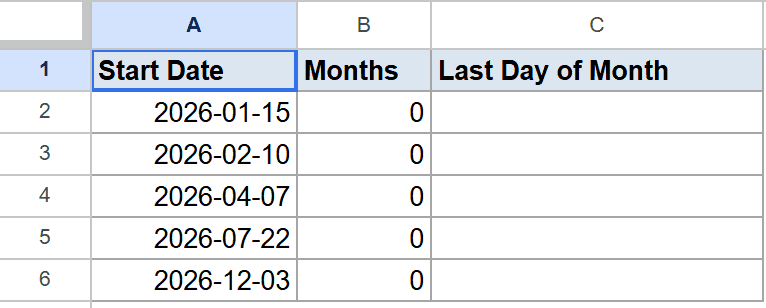
I want each row to return the last day of the same month the date belongs to.
Here is the formula:
=EOMONTH(A2,B2)
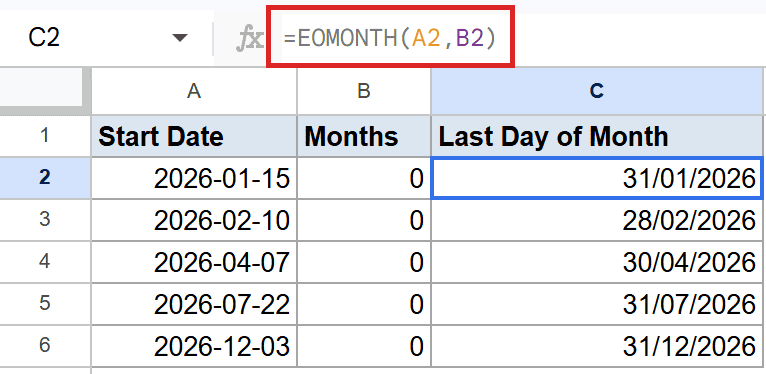
Because the months argument is 0, EOMONTH just snaps the date forward to the last day of the same month. So January 15, 2026 lands on January 31, February 10 lands on February 28, and so on.
Pro Tip: To run this across a whole column at once, wrap the call in ARRAYFORMULA like this: =ARRAYFORMULA(EOMONTH(A2:A6, 0)). No need to fill down.
Example 2: Last Day N Months in the Future
Now let’s push the date forward by a few months.
Below is the dataset. Column A holds the same start date (January 15, 2026) repeated, and column B holds different positive months values.
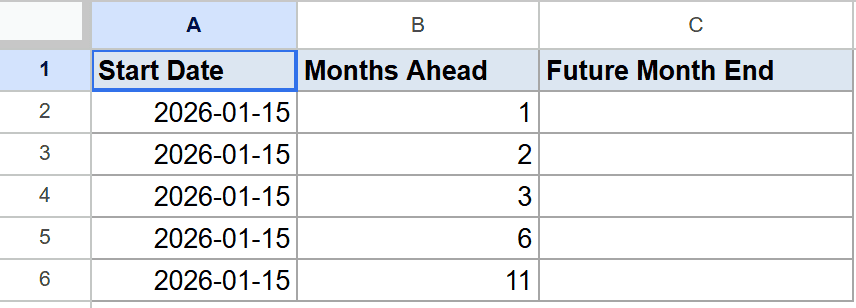
I want each row to land on the last day of a future month, depending on the offset in column B.
Here is the formula:
=EOMONTH(A2,B2)
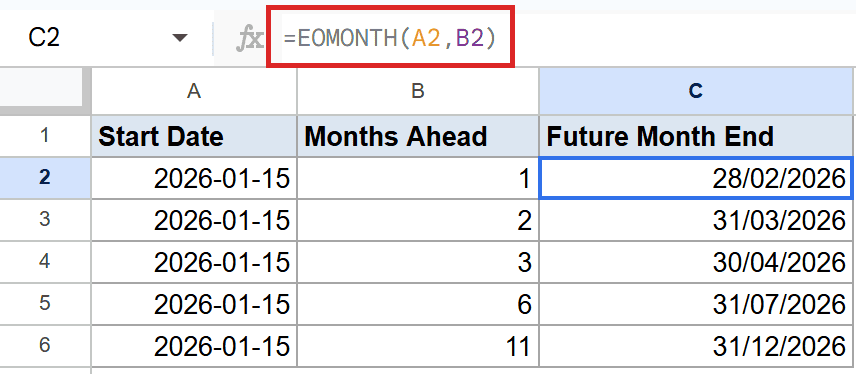
A positive months argument tells EOMONTH to jump forward that many months from the start date, then return the last day of that month. So 1 month ahead of January 15 lands on the last day of February, 6 months ahead lands on the last day of July, and so on.
Pro Tip: If you want the same calendar day N months later (not the month-end), use EDATE instead. EOMONTH gives you the last day of the target month, EDATE keeps the day-of-month.
Example 3: Last Day N Months in the Past
Negative months work the same way, just in the other direction.
Below is the dataset, with the same start date in column A and negative offsets in column B.
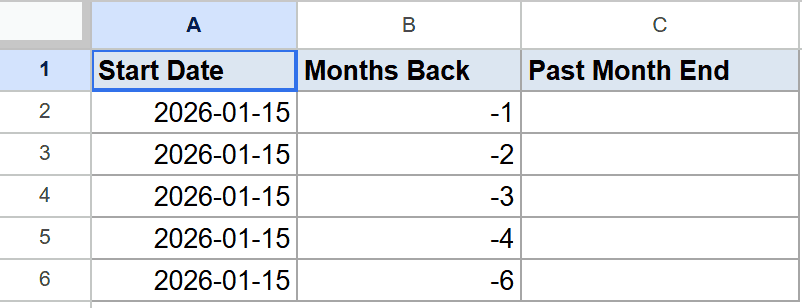
I want each row to land on the last day of a prior month.
Here is the formula:
=EOMONTH(A2,B2)
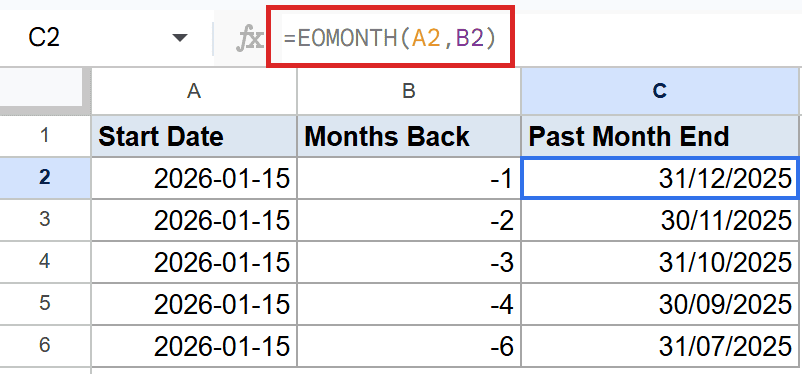
A negative months argument walks the date backward by that many months, then returns the last day of that month. So -1 from January 15 lands on the last day of December, -6 lands on the last day of July of the previous year.
Example 4: Find the Quarter-end Date
This one chains a few functions together, but the idea is simple.
Below is the dataset, with dates in column A. Each date sits somewhere inside a calendar quarter and I want the matching quarter-end date in column B.
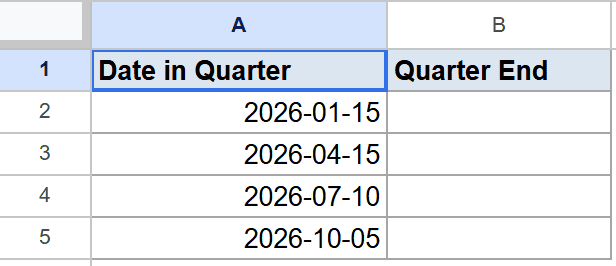
I want each row to return the last day of the quarter the date belongs to.
Here is the formula:
=EOMONTH(A2,MOD(-MONTH(A2),3))
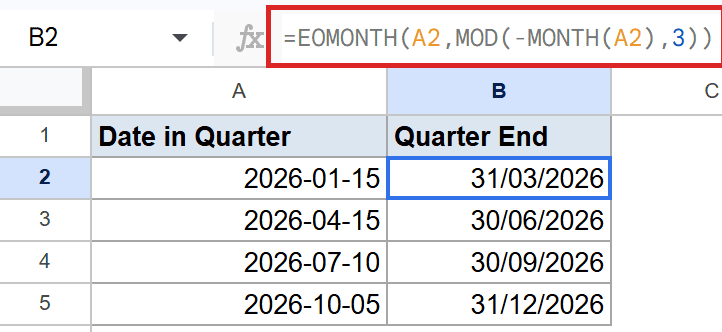
How this formula works:
- MONTH(A2) returns the month number (1 to 12). For January it’s 1, for April it’s 4.
- Negating that and taking MOD by 3 gives the number of months you need to add to reach the next quarter boundary. For January, that’s 2 (March is the quarter-end).
- EOMONTH then snaps to the last day of that target month.
Pro Tip: If your dates are stored as text, wrap A2 in DATEVALUE first so EOMONTH treats it as a real date.
Example 5: Count Days in a Month
A quick trick for getting the number of days in any month.
Below is the dataset, with one date per row in column A. The months span a leap year February, a non-leap February, and a mix of 30 and 31-day months.
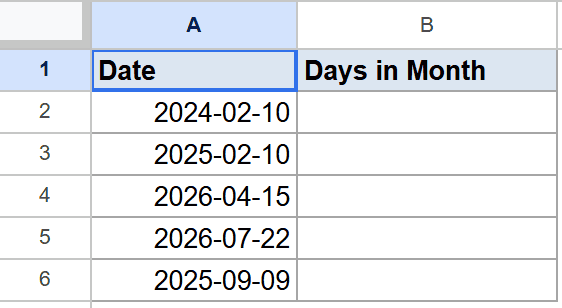
I want each row to show how many days are in the month that date belongs to.
Here is the formula:
=DAY(EOMONTH(A2,0))
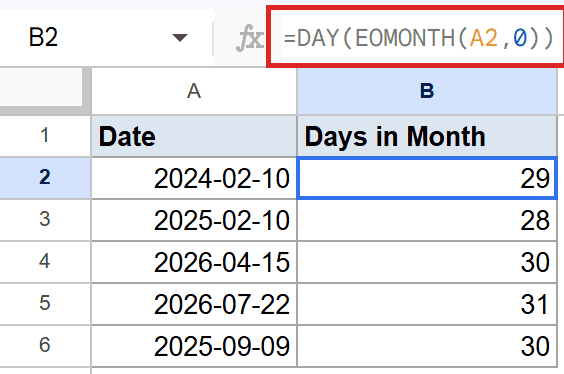
EOMONTH first returns the last day of the month, then DAY pulls just the day-of-month number out of it. So February 2024 gives you 29 (leap year), February 2025 gives you 28, April gives you 30, and July gives you 31.
Tips & Common Mistakes
- Cell shows a number, not a date. If the result looks like 46053 instead of a date, the cell just needs Format > Number > Date applied. EOMONTH returns a date serial, and Sheets only renders it as a date if the cell is formatted that way.
- Text dates fail silently. EOMONTH expects a real date, not a string that looks like one. Use DATEVALUE to convert text dates first.
- EOMONTH vs EDATE. EOMONTH always returns the last day of the target month. If you want the same day-of-month N months out, use EDATE instead. Mixing them up is a common source of off-by-one errors.
That covers the main ways to use EOMONTH in Google Sheets. The function on its own is a one-trick tool (last day of a month) but pairs nicely with DATE, DAY, MONTH, and MOD to build quarter-end logic, days-in-month helpers, and fiscal date rollups.
List of All Google Sheets Functions
Related Google Sheets Functions / Articles: