
An absolute reference keeps a row and column fixed when you copy a Google Sheets formula. Add dollar signs, as in $C$2, or use your platform’s shortcut while editing.
Google documents F4 on Windows, Fn + F4 on Mac, and Search + 4 on ChromeOS. The shortcut cycles through absolute, row-only, column-only, and relative references.
What is an absolute reference?
A relative reference such as C2 changes when a formula is copied. An absolute reference such as $C$2 continues pointing to the same cell.
This is useful for a tax rate, conversion factor, lookup table, or other input that every copied formula must reuse.
Use the absolute-reference shortcut
Windows
F4
Mac
Fn + F4
ChromeOS
Search + 4
- Edit the formula and place the caret inside the reference you want to change.
- Press the shortcut until the reference has the required dollar signs.
- Press Enter to save the formula.
In our Windows Chrome test, F4 cycled C2, $C$2, C$2, $C2, then back to C2.
F4 also appears as Redo in Google’s PC shortcut table. Its reference-toggle behavior applies while you are entering a formula.
Copy a formula without moving the tax-rate reference
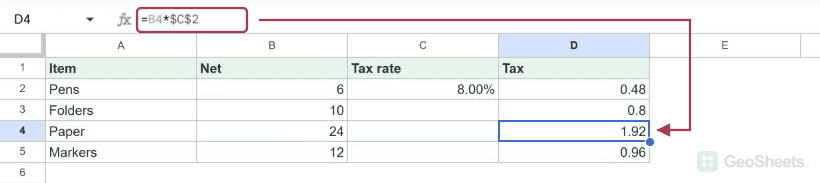
Our sample has net amounts in B2:B5 and an 8% tax rate in C2. D2 uses this formula:
=B2*$C$2After filling D2 down through D5, the B references changed by row. Every copied formula continued to use $C$2.
The results were 0.48, 0.8, 1.92, and 0.96 for net amounts 6, 10, 24, and 12.
Absolute versus mixed references
C2lets both the column and row move.$C$2fixes both the column and row.C$2fixes row 2 but lets the column move.$C2fixes column C but lets the row move.
Mixed references are useful in two-dimensional calculations. Choose the dollar-sign pattern according to which part should stay fixed when the formula moves.
Type the dollar signs when F4 does not work
You can type $ before the column letter, row number, or both. This works on any keyboard and makes the intended reference explicit.
Confirm that the formula is in edit mode before testing the shortcut. Google documents these keys specifically for absolute and relative references while entering a formula.
Other Google Sheets articles you may also like