
Paint format copies a cell’s appearance to another cell in Google Sheets. It can transfer font styling, fill, borders, alignment, and number formatting while keeping the destination’s value or formula.
Use the paint-roller button for a quick copy, or use Paste special > Format only when you prefer a repeatable copy-and-paste workflow.
Copy formatting with the paint roller
- Select the source cell, such as A2.
- Click the Paint format roller in the toolbar, near Print.
- Click the destination cell, such as B2, or drag across the intended target range.
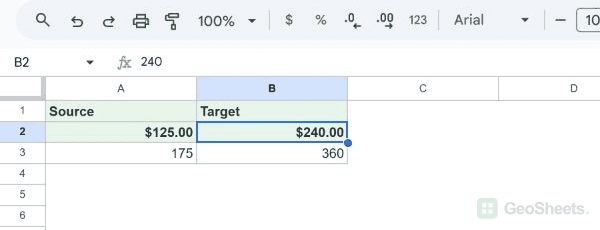
The source displays $125.00 with bold text and a pale green fill. B2 retains its value of 240 but displays $240.00 with the copied formatting.
Use the format-only paste shortcut
- Select the formatted source and copy it with Ctrl+C on Windows or Command+C on Mac.
- Select the destination within the same spreadsheet.
- Press Ctrl+Alt+V on Windows, or Command+Option+V on Mac.
The Windows menu identifies Ctrl+Alt+V as Format only. This shortcut applies copied formatting; it does not directly toggle the paint roller.
Use Paste special from the menu
- Copy the formatted source cell or range.
- Select the destination.
- Choose Edit > Paste special > Format only.
The native menu test copied A2’s currency format, bold text, and fill to B3 while retaining the value 360. Paste special works within the same spreadsheet.
Apply the same format to separate destinations
Copy the source once, then apply Format only to each destination. This avoids needing to activate the paint roller again for every target.
Google’s general copy-formatting help suggests double-clicking Paint format to keep it active. That did not stay active in the tested Sheets session; the repeat-paste method is the reliable alternative demonstrated here.
Check what the copied format changes
Number formats can change how a value looks without changing its amount. A plain 240 can become $240.00, or a decimal can display as a percentage.
Existing conditional-formatting rules can influence the visible result. Use the separate Conditional formatting only or Data validation only paste options when your task specifically concerns those rules.
Copying a formatted range applies a pattern of formats. Match the intended source and destination sizes, and use Undo if the formatting lands in the wrong area.
See Google’s formatting guidance for the documented options.
Other Google Sheets articles you may also like