
Sometimes one task needs several labels. You might mark an onboarding task for both Design and Review, but an ordinary dropdown lets you choose only one.
Google Sheets has a native setting for this. I’ll show you how to turn it on, select more than one label, and use a source range when your choices are maintained in cells.
Allow multiple selections in a dropdown
Here is the starting task list. Task names are in A2:A4, and the Labels cells in B2:B4 are empty. We’ll let each task hold any combination of Design, Review, and Finance.
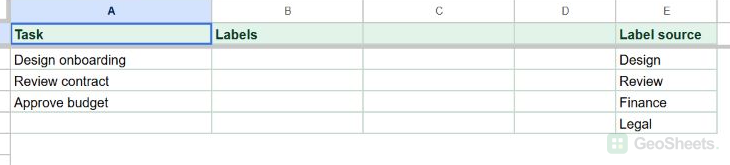
Here are the steps to make the Labels cells accept several choices:
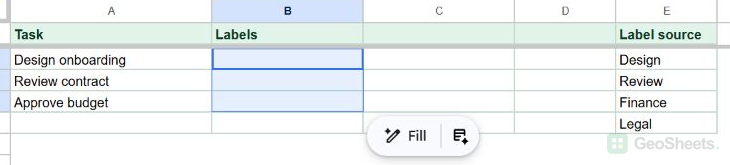
- Select B2:B4, the empty Labels cells beside the tasks.

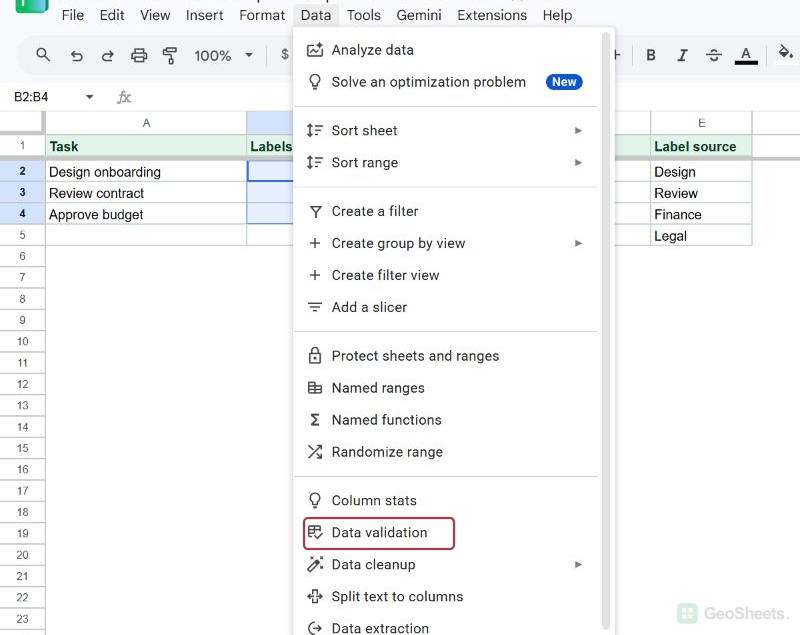
Select the cells that will contain the labels. - Open Data > Data validation.

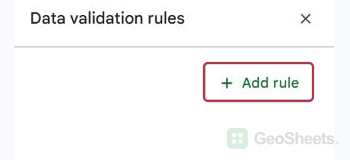
Data validation is in the Data menu. - Click Add rule in the sidebar.

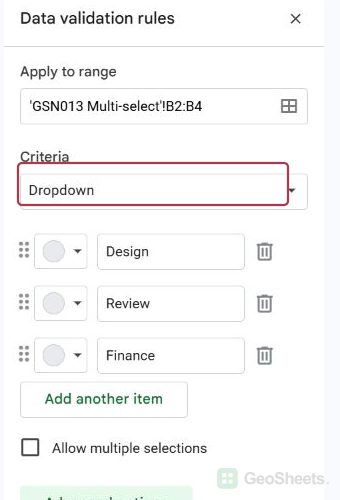
Add a rule for B2:B4. - Under Criteria, choose Dropdown. Enter Design and Review, then use Add another item for Finance.

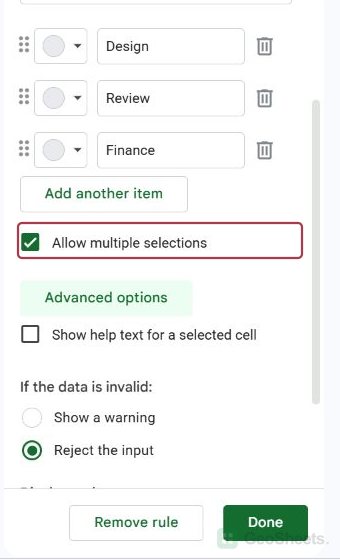
The rule contains the three task labels. - Keep the Chip display style and turn on Allow multiple selections. Click Done.

Enable multiple selections before saving the rule. - Open the dropdown in B2. Choose Design, then choose Review. Reopen the list to see both choices selected.

After: B2 has both labels, and the open list shows the selections.
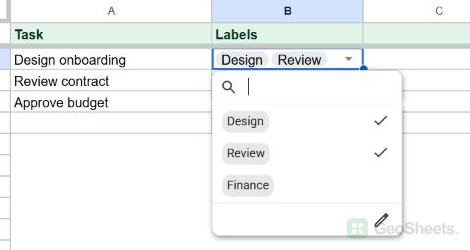
You can assign a different combination to each task in B2:B4. The rule supplies the available labels; it doesn’t fill the cells until you choose them.
If the multiple-selection setting is unavailable
Open the data validation rule and check its display style. Google Sheets requires Chip for Allow multiple selections; Arrow and Plain text do not support that setting.
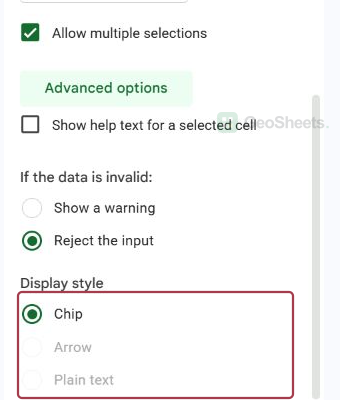
If a second choice replaces the first, also check the option text for spaces at the beginning or end. Google’s dropdown help says those spaces can prevent multiple selections.
Remove one selected label
If a task no longer needs Review, open that cell’s dropdown and deselect Review. The other selected label stays in the cell.
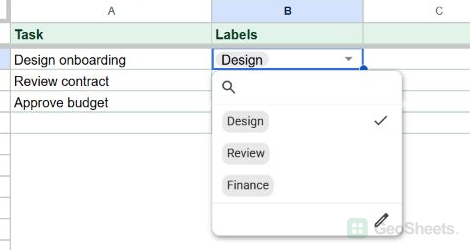
To change the available labels for everyone, edit the data validation rule. Removing a choice from one task changes that cell’s selection, not the shared rule.
Use a range of cells for the dropdown choices
When a team maintains its label list in the sheet, you can point the rule at those cells. Here, E2:E5 contains Design, Review, Finance, and Legal; C2:C4 is empty.
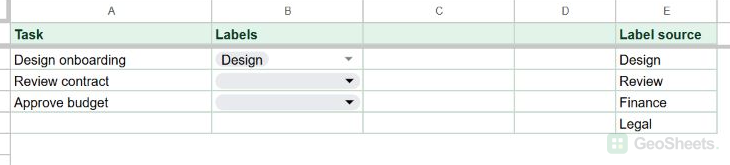
Here are the steps to use those source cells for a second multi-select dropdown:
- Select C2:C4, then open Data > Data validation > Add rule.
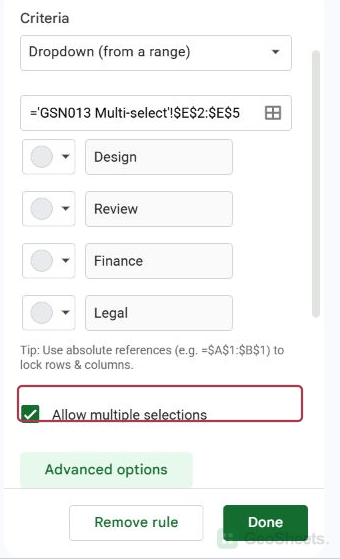
Select the destination cells, not the source choices. - Under Criteria, choose Dropdown from a range and set the source to E2:E5.

The rule reads its choices from E2:E5. - Keep Chip display, turn on Allow multiple selections, and click Done.
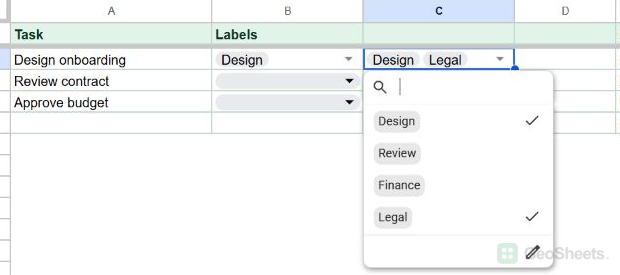
The source-range rule also allows several selected labels. - Open C2 and choose Design and Legal.

C2 contains two choices from the source list.
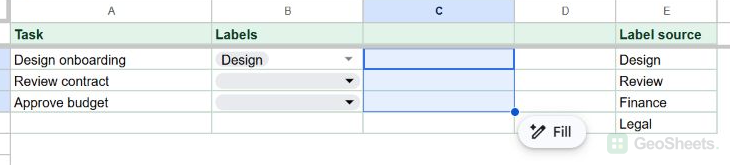
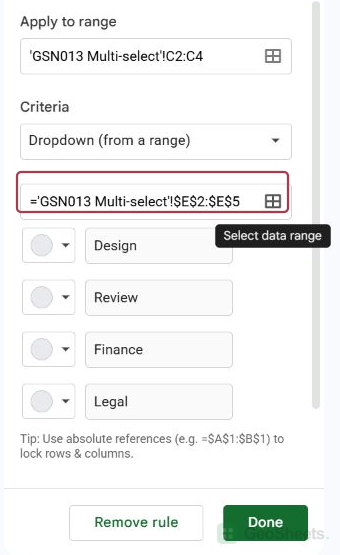
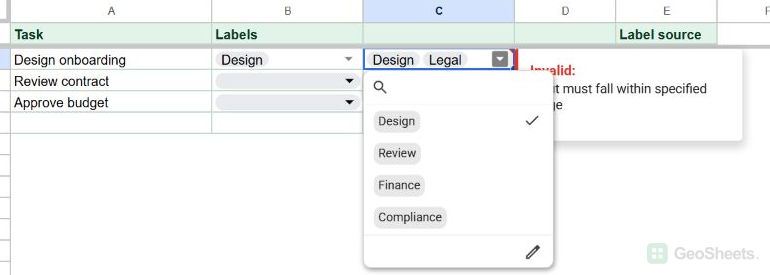
Editing a value inside E2:E5 changes the choices offered by the rule. If you add a new label outside E2:E5, expand the source range so that the rule includes it.
Other Google Sheets articles you may also like