
If several people assign support requests, keeping the team names on a separate tab makes the choices easier to maintain. Your working tab can use those cells as a dropdown source.
I’ll show you how to connect a dropdown on one tab to a source list on another tab in the same spreadsheet, then update one choice.
Prepare the source list and destination cells
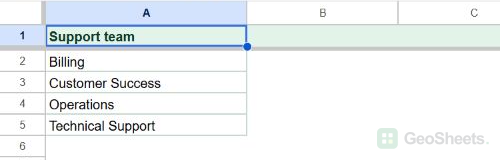
Name the source tab GSN014 Lists. A2:A5 contains four support teams: Billing, Customer Success, Operations, and Technical Support. The heading is in A1, outside the dropdown’s source range.
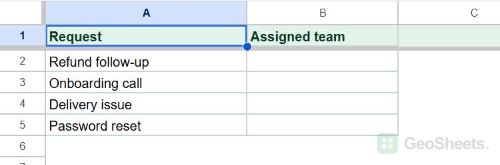
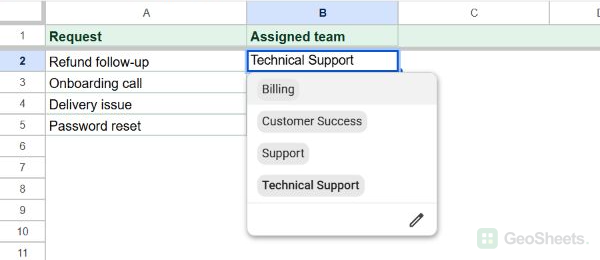
Name the working tab GSN014 Orders. Four requests appear in A2:A5. B2:B5 is empty, ready for the Assigned team dropdown.
Use these tab names to match the rule shown below. If yours differ, replace the tab name in the source-range field.
Connect the dropdown to the source tab
Here are the steps to offer that source list in every assignment cell.
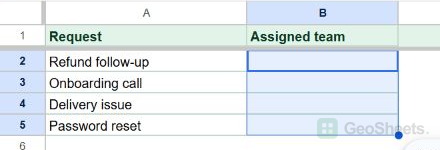
1. Select GSN014 Orders!B2:B5. This is the range that will receive the dropdown rule.
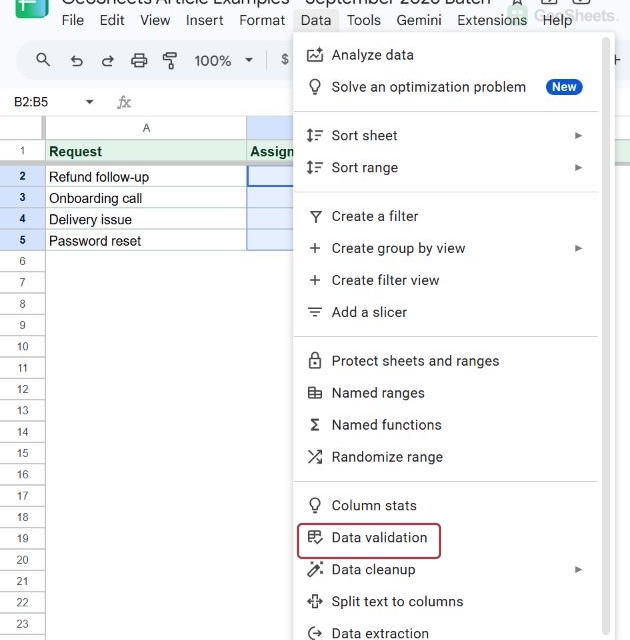
2. Choose Data > Data validation.
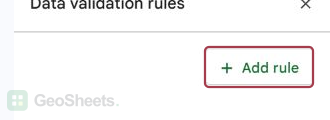
3. In the rules sidebar, click Add rule if no new rule is open.
4. Check that Apply to range is B2:B5. Under Criteria, choose Dropdown from a range, then select ‘GSN014 Lists’!$A$2:$A$5.
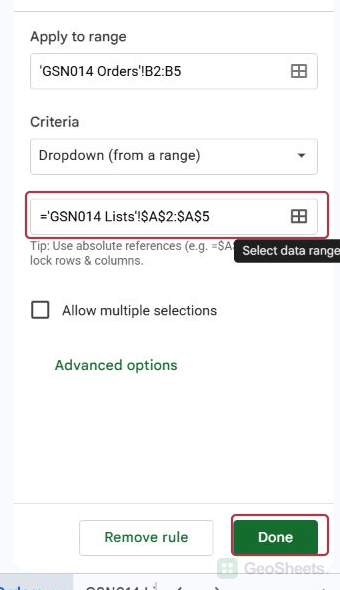
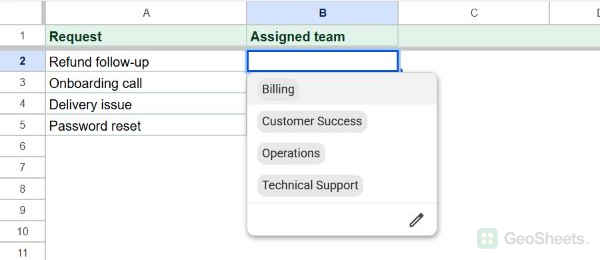
5. Click Done, then open B2. Check that its menu offers Billing, Customer Success, Operations, and Technical Support.
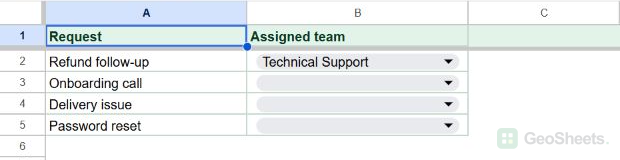
Choose Technical Support for the first request. B2 holds that value, while the other assignment cells keep their own dropdowns.
Change a choice on the source tab
Suppose Operations is now called Support. Edit GSN014 Lists!A4 to Support, keeping the value inside the source range A2:A5.
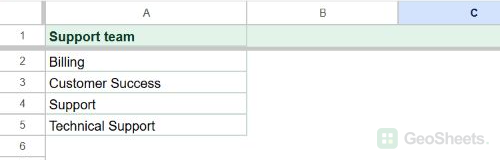
Return to GSN014 Orders and reopen B2. The menu should now offer Support in place of Operations, alongside the other three teams.
The rule points to a specific range. When adding a team below A5, check the rule’s source range and extend it to include the new cell if needed.
If a cell already holds a value you removed from the source list, inspect that cell after the edit. Change its assignment when you need it to match the current choices.
If the list is in a different spreadsheet file
“Another sheet” here means another tab in the same file. A separate spreadsheet file needs an additional import step; IMPORTRANGE can bring its values into a local tab after access is granted.
If a category choice should change a second dropdown, that is a different setup using a filtered helper list.
Other Google Sheets articles you may also like