
Google Apps Script is a cloud-based JavaScript platform for automating Google Sheets and other Google Workspace services. You can read ranges, write results, create custom functions, and add spreadsheet menus.
This beginner guide starts with a tested script that reads three task rows and writes an Open total. It then explains the larger Apps Script toolkit and its permission boundaries.
Open Apps Script from Google Sheets
Open a spreadsheet and choose Extensions > Apps Script. Sheets opens the script project bound to that spreadsheet in a new browser tab.
A bound project can use methods such as getActiveSpreadsheet() and can add menus or sidebars to its parent spreadsheet.
Apps Script uses modern JavaScript syntax. Functions organize actions, variables store values, arrays hold rows, and objects expose Google services through methods.
- In the editor, click Add a file beside Files.
- Choose Script and give the file a descriptive name.
- Keep existing files unless you know they are disposable.
The verified example was added as UntitledBatchTwo.gs. The existing Code.gs file remained unchanged.
Google’s Apps Script guide for Sheets explains bound projects, ranges, custom functions, menus, dialogs, and sidebars.
Read and write your first range
On the GS-Test-Script tab, A1:C4 contains this small task table:
| Task | Amount | Status |
|---|---|---|
| Report | 120 | Open |
| Budget | 250 | Done |
| Review | 180 | Open |
The script reads A2:C4, adds amounts from rows marked Open, and writes a two-row summary to E1:F2.
/** @OnlyCurrentDoc */
function summarizeOpenTasks() {
  const sheet = SpreadsheetApp.getActiveSpreadsheet()
    .getSheetByName('GS-Test-Script');

  if (!sheet) {
    throw new Error('Test sheet was not found.');
  }

  const rows = sheet.getRange('A2:C4').getValues();
  const total = rows
    .filter(row => row[2] === 'Open')
    .reduce((sum, row) => sum + Number(row[1]), 0);

  sheet.getRange('E1:F2').setValues([
    ['Status', 'Total'],
    ['Open', total]
  ]);

  console.log('Open total: ' + total);
}
How the script works
@OnlyCurrentDoc tells Apps Script that this project needs access only to its current file when Google can honor that narrower scope.
getSheetByName() targets one named tab. The explicit missing-sheet check stops the script with a useful message instead of failing later on an undefined object.
getValues() returns the range as a two-dimensional JavaScript array. Each inner array represents one row from A2:C4.
filter() keeps rows whose third value is Open. reduce() converts the Amount value to a number and adds it to the running total.
setValues() writes a two-row, two-column array to the matching two-row, two-column range E1:F2. The array and destination must have the same dimensions.
console.log() records a checkpoint in the execution log. It does not write anything to the sheet.
Run the function
- Click Save project.
- Select summarizeOpenTasks from the function dropdown.
- Click Run.
- Read the execution log, then return to the spreadsheet.
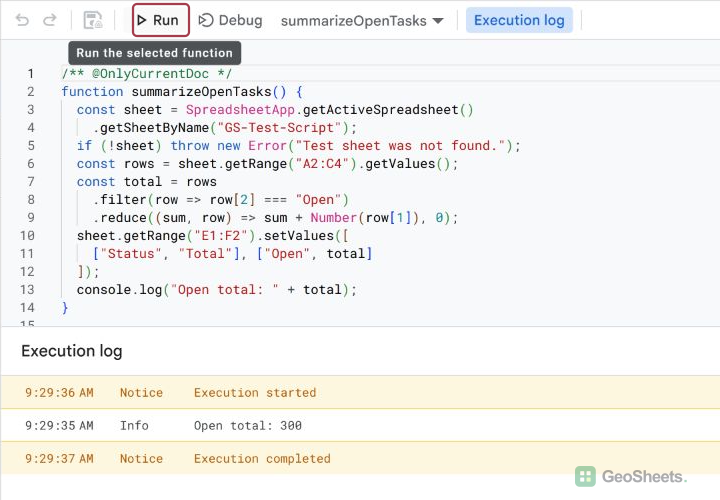
The tested run completed and logged Open total: 300. The sheet showed Status and Total in E1:F1, then Open and 300 in E2:F2.
No authorization dialog appeared during this run because the required current-document access had already been granted. A first run in another project or account may request authorization.
Create a custom function
A custom function lets you call your JavaScript from a cell like a built-in Sheets function.
/** @customfunction */
function COSTTOTAL(quantity, unitPrice) {
  return quantity * unitPrice;
}
Save the project, then enter =COSTTOTAL(3,25) in a cell. The tested formula in E5 returned 75.
Custom functions should return a value or array to their formula cell. They cannot use services that require user authorization, and they cannot edit arbitrary cells as a side effect.
Google documents these limits in its custom functions guide.
Add a custom menu, button, or sidebar
Custom menu
A custom menu gives spreadsheet users a visible command for a script function.
function addTutorialMenu() {
  SpreadsheetApp.getUi()
    .createMenu('Tutorial')
    .addItem('Summarize open tasks', 'summarizeOpenTasks')
    .addToUi();
}
The verified run completed, and a Tutorial menu appeared in the spreadsheet. Its Summarize open tasks item points to the tested function.
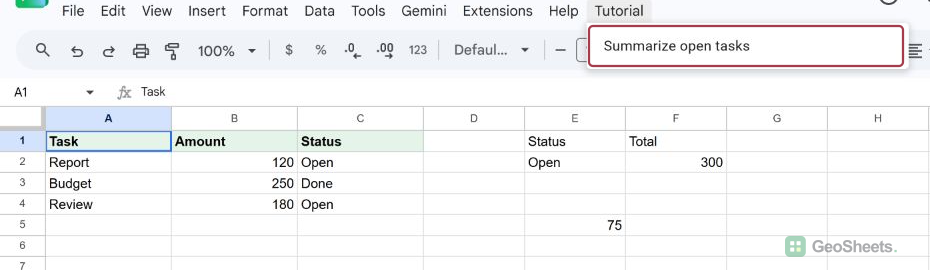
To recreate the menu whenever an editor opens the file, call the same menu-building code from an onOpen(e) simple trigger.
Google’s custom menus guide also covers assigning functions to images and drawings in Sheets.
Buttons and sidebars
You can insert a drawing or image, open its menu, choose Assign script, and enter a function name. Clicking that object runs the function in a web browser.
A sidebar can hold forms, instructions, and buttons while the sheet remains visible. Apps Script builds the interface with HTML Service, then opens it through the spreadsheet UI.
Automate common work with macros and triggers
Record a macro without writing code
A macro records supported spreadsheet actions and saves generated Apps Script in a bound project. It suits repeatable formatting or cleanup sequences.
- Choose Extensions > Macros > Record macro.
- Perform the sheet actions.
- Choose relative or absolute references, then save the macro.
Review generated code before sharing a macro widely. Recorded actions can depend on the active range, sheet layout, or hard-coded references.
Understand simple and installable triggers
Simple triggers use reserved names such as onOpen(e) and onEdit(e). Sheets calls them after the matching event, subject to authorization and runtime restrictions.
The event object e exists when the trigger fires. Clicking Run in the editor does not create a spreadsheet edit event, so event-dependent code lacks that object.
Installable triggers can respond to opening, editing, structural changes, form submissions, or schedules. They run under the account that created them and may require broader authorization.
Read Google’s trigger restrictions before relying on identity, authorized services, or an event object.
Connect Sheets to other Google services
SpreadsheetApp reads and changes spreadsheet files. Apps Script also provides services for Drive, Gmail, Calendar, Maps, Docs, Forms, and other Workspace products.
- Drive: create files, organize reports, and manage files your account can access.
- Gmail: send notifications or personalized messages from approved spreadsheet data.
- Calendar: create events from scheduled rows.
- Maps: geocode addresses or calculate routes where service availability and quotas permit.
These integrations can request additional scopes and affect external data, messages, files, or calendars. Review each service’s permissions before adding it to a project.
Opening another spreadsheet with openById() generally needs broader spreadsheet access than a script limited to its current document. Add that capability only when the workflow requires it.
If formulas can solve the task, an IMPORTRANGE formula may be simpler for reading another spreadsheet.
Handle permissions, errors, and execution logs
Review permissions and privacy
Apps Script scans the services your code uses and requests matching OAuth scopes. Google’s authorization guide explains the consent flow and scope handling.
Use the narrowest services and document ranges that accomplish the task. Treat spreadsheet values, email addresses, files, and calendar details according to your organization’s data policies.
@OnlyCurrentDoc can narrow a suitable project to its container file. It cannot make a workflow needing other files or services operate without their required scopes.
Debug the actual failure
Start with Executions and the execution log. Confirm the selected function, failing line, input range, sheet name, authorization state, and any quota message.
Use console.log() for checkpoints and values. Use the debugger and breakpoints when you need to inspect variables one line at a time.
Do not wrap an entire script in a catch block merely to hide errors. Catch an error only when the function has a specific recovery or cleanup action.
For a symptom-led checklist, see how to fix Apps Script when it is not working.
Share scripts, web apps, and libraries carefully
Share a bound script
A bound script follows the spreadsheet’s collaboration context. Spreadsheet editors can work with its attached code, so review both sheet access and source-code sensitivity before sharing.
Collaborators still authorize functions under their own accounts when required. Sharing a spreadsheet does not silently grant every collaborator the original author’s service permissions.
Deploy a web app
A web app exposes a script through a URL and uses doGet(e) or doPost(e) as an entry point.
Deployment settings decide who can access the app and whether it executes as the owner or the accessing user. Those choices change the security model.
Review Google’s web app deployment guide before exposing data or actions.
Reuse code with a library
An Apps Script library lets several projects call functions from one shared script project. Consumers add its script ID, choose a version, and assign an identifier.
Version changes affect dependent projects, so test upgrades and document the public functions. Google’s libraries guide explains access and version selection.
Make scripts faster and easier to maintain
- Read a complete working range once with
getValues(). - Process the returned array in JavaScript.
- Write a matching result array once with
setValues(). - Use descriptive function, file, sheet, and range names.
- Fail early when required sheets or inputs are missing.
- Keep permissions and changed ranges as narrow as the task permits.
Batch reads and writes reduce calls between Apps Script and Google services. The tested summary uses one read and one write for that reason.
Google’s Apps Script best practices cover batching, caching, shared drives, and avoiding unnecessary service calls.
Continue with reliable Apps Script resources
- Use Google’s guides for concepts, authorization, deployment, and feature constraints.
- Use the Apps Script reference for exact classes, methods, parameters, return values, and required scopes.
- Check the quotas page before designing high-volume or scheduled automation.
- Use Google Codelabs for guided exercises and the google-apps-script tag on Stack Overflow for focused technical questions.
Begin with a bounded range and a visible result, as in the tested summary. Add triggers, external services, deployments, or libraries only after the core function works.
Other Google Sheets articles you may also like