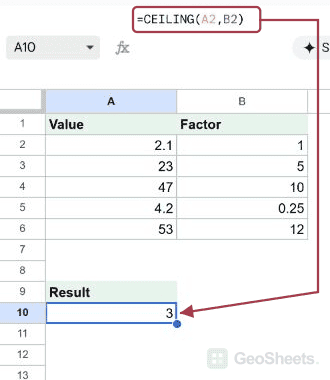
When you need a number rounded up to a tidy multiple, the CEILING function in Google Sheets handles it in one step. Prices to the next dollar, counts to the next ten, lengths to the next quarter unit.
This guide walks through five examples, starting with simple whole-number rounding and ending with a division trick for working out how many boxes you need.
CEILING Function Syntax in Google Sheets
Here is what the CEILING function looks like.
=CEILING(value, [factor])
valueis the number you want to round up.factoris the multiple you want to round up to. It is optional and defaults to 1.
When to Use CEILING Function
- Rounding prices up to the next whole dollar or cent.
- Bumping order quantities up to the nearest 5, 10, or 100.
- Working out how many fixed-size boxes or pages you need.
- Snapping measurements up to the nearest quarter, half, or other fraction.
Example 1: Round Prices Up to the Nearest Dollar
Let’s start with the most common use, rounding messy prices up.
Below is the dataset with item names in column A and their raw prices in column B. The Rounded Price column is empty for now.

I want every price pushed up to the next whole dollar.
Here is the formula:
=CEILING(B2, 1)

A factor of 1 rounds up to the nearest whole number. So 2.1 becomes 3, 4.35 becomes 5, and 7.8 becomes 8.
Notice that 9.6 rounds up to 10, not down to 9. CEILING always goes up, even when the decimal is small.
Pro Tip: Leaving out the factor does the same thing here. =CEILING(B2) rounds up to the nearest 1 because the factor defaults to 1.
Example 2: Round Up to the Nearest 5
Now let’s round to something other than a whole number.
Below is the dataset with order labels in column A and unit counts in column B.

I want each unit count rounded up to the nearest multiple of 5.
Here is the formula:
=CEILING(B2, 5)

The factor of 5 snaps each number up to the next multiple of 5. So 23 becomes 25 and 41 becomes 45.
Numbers that already sit on a multiple of 5 stay put. That is why 30 stays 30 instead of jumping to 35.
Example 3: Pack Items Into Boxes of 10
Here is a packaging scenario where rounding up matches real life.
Below is the dataset with product names in column A and item counts in column B.

I want to know the box capacity needed if each box holds 10 items.
Here is the formula:
=CEILING(B2, 10)

With a factor of 10, 47 rounds up to 50 and 88 rounds up to 90. You can’t ship half a box, so rounding up is exactly what you want.
A count of 100 stays at 100 since it already fills ten boxes evenly.
Example 4: Round Up to the Nearest 0.25
The factor does not have to be a whole number.
Below is the dataset with material names in column A and lengths in meters in column B.

I want each length rounded up to the nearest quarter meter.
Here is the formula:
=CEILING(B2, 0.25)

A fractional factor works the same way. 4.2 rounds up to 4.25 and 2.31 rounds up to 2.5.
A length of 7.8 lands on 8 because 8 is the next clean multiple of 0.25 above it.
Example 5: Boxes Needed From a Division
Let’s combine CEILING with a quick division to size up an order.
Below is the dataset with order labels in column A, total items in column B, and items per box in column C.

I want to know how many full boxes each order needs, with 12 items per box.
Here is the formula:
=CEILING(B2/C2, 1)

The division runs first, then CEILING rounds the result up to a whole box. So 53 items divided by 12 is about 4.4, which rounds up to 5 boxes.
An order of exactly 24 items needs 2 boxes, and 7 items still needs a full box, so it returns 1.
Tips & Common Mistakes
- The factor sign must match the number’s sign. Pairing a positive number with a negative factor returns an error, so keep both on the same side of zero.
- CEILING always rounds up, FLOOR always rounds down, and MROUND rounds to the nearest multiple either way. Pick the one that matches the direction you need.
- Skip the factor and it defaults to 1, so CEILING rounds up to the next whole number. Pass a factor only when you want a different multiple.
CEILING gives you a fast way to push numbers up to a clean multiple. Whole dollars, batches of 5 or 10, quarter units, it handles them all with one argument.
Once you see the factor as “the multiple to round up to,” the rest falls into place.
List of All Google Sheets Functions
Related Google Sheets Functions / Articles: