
Use =ROUND(B2,2) to round a number to two decimal places in Google Sheets. Set the second argument to 0 for whole numbers or -1 for tens. ROUND returns a new numeric result.
Round to Two Decimal Places
Enter this dataset starting in A1. Leave cells marked “(blank)” empty.
| Item | Original |
|---|---|
| A | 3.14159 |
| B | 19.987 |
| C | 12.5 |
| D | -2.5 |
| E | 124 |
Enter this formula in E2:
=ROUND(B2,2)The result is 3.14. ROUND examines the next digit to decide whether the retained digit increases. For 19.987, the two-decimal result is 19.99.
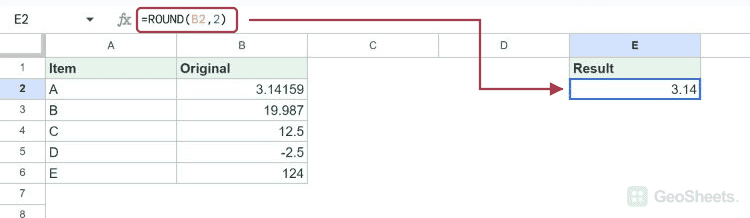
The source value in B2 remains 3.14159. The formula result in E2 is 3.14, so later formulas using E2 calculate with the rounded number. ROUND does not overwrite its source cell.
ROUND Function Syntax
=ROUND(value, [places])value is the number or calculation to round. places is optional and defaults to 0. Positive values retain decimal places; negative values round digits to the left of the decimal point.
Round to a Whole Number, Ten, or Hundred
| Formula | Result |
|---|---|
| =ROUND(12.5,0) | 13 |
| =ROUND(12.5) | 13 |
| =ROUND(124,-1) | 120 |
| =ROUND(1267,-2) | 1300 |
A places value of -1 means tens, -2 means hundreds, and -3 means thousands. Do not put square brackets around a supplied argument; they only indicate optional syntax in documentation.
Understand Negative Numbers and Halfway Values
=ROUND(-2.5,0)This returns -3. At the halfway point, ROUND rounds away from zero. “Round up” here refers to magnitude, so a negative result becomes more negative.
=ROUND(-12.45,1)This returns -12.5. If you always need a direction regardless of the halfway digit, use ROUNDUP for away from zero or ROUNDDOWN for toward zero.
Round a Calculation
=ROUND(19.99*1.08,2)This adds 8% to 19.99 and returns 21.59. Multiplication happens before rounding. Choose deliberately whether a report should total individually rounded lines or round only its final total; those can differ.
For percentages, remember that 12.67% is stored as 0.1267. =ROUND(0.1267,2) returns 0.13, equivalent to 13%, rather than rounding the displayed percentage to two decimal places.
Round a Range of Values
=ARRAYFORMULA(ROUND(B2:B6,2))Enter this in an empty column. For the first dataset, it returns 3.14, 19.99, 12.5, -2.5, and 124. Leave room for all five results to expand; the source values remain unchanged.
Round the Value or Change Its Display
If you only want fewer visible decimal places, use number formatting. It preserves the underlying precision. ROUND changes the formula result used by subsequent calculations.
Trailing zeros are a display choice: a result of 12.5 can appear as 12.50 with a two-decimal format. ROUND alone does not guarantee that every cell visibly shows the same number of decimal digits.
For rounding to a multiple such as 5 or 0.25, use MROUND. Decimal-place rounding and multiple-based rounding solve different tasks.
Other Google Sheets articles you may also like