
ROUNDUP rounds a number away from zero in Google Sheets. For positive values, =ROUNDUP(2.1,0) returns 3. For negative values, =ROUNDUP(-2.1,0) returns -3. It does not always return a mathematically larger number.
Calculate How Many Whole Boxes You Need
Enter this dataset starting in A1. Leave cells marked “(blank)” empty.
| Item | Units | Box capacity |
|---|---|---|
| Books | 10 | 3 |
| Cards | 25 | 8 |
| Folders | 12 | 6 |
| Bottles | 0 | 6 |
Enter this formula in E2:
=ROUNDUP(B2/C2,0)The result is 4. Ten books divided by a capacity of three need 3.3333… boxes, so one partial box still requires a fourth whole box.
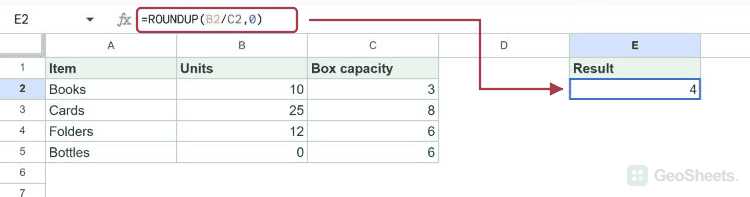
For the other rows, 25 cards at eight per box need four boxes; 12 folders at six per box need two. An exact division does not gain an unnecessary extra unit.
The capacity must be positive for this packing example. Dividing by zero returns #DIV/0!, even when the division is inside ROUNDUP. Negative quantities do not describe the intended packing task.
ROUNDUP Function Syntax
=ROUNDUP(value, [places])value can be a number, cell reference, or calculation. places defaults to 0 for whole numbers. Positive values retain decimals; negative values round digits to the left of the decimal point.
Round Away From Zero to a Whole Number
=ROUNDUP(2.1,0)
=ROUNDUP(-2.1,0)
Enter these separately. The results are 3 and -3. ROUNDUP increases the magnitude whenever there is a remainder at the requested precision.
Compare ROUND, which sends 2.1 to 2 using the usual halfway rule. ROUNDDOWN rounds toward zero instead. Choose the direction your calculation requires, especially when negative values are possible.
Round Up to Two Decimal Places
=ROUNDUP(3.14159,2)This returns 3.15. Even a small remainder beyond the second decimal place causes the result to move away from zero.
=ROUNDUP(9.999,2)This returns 10. A two-decimal number format can display it as 10.00. Formatting controls trailing zeros, while ROUNDUP controls the numeric result.
Round Up to Tens or Hundreds
| Formula | Result |
|---|---|
| =ROUNDUP(42,-1) | 50 |
| =ROUNDUP(50,-1) | 50 |
| =ROUNDUP(-42,-1) | -50 |
Use -1 for tens and -2 for hundreds. An exact multiple stays unchanged. For a negative input, rounding to tens still means moving away from zero, as -42 becoming -50 shows.
Choose Decimal Places or a Specific Multiple
=CEILING(42,5)This returns 45, the next multiple of five for a positive input. Use CEILING for that requirement; setting ROUNDUP’s places argument to 5 would instead request five decimal places.
Keep the output separate from the source data. A formula such as =ROUNDUP(B2/C2,0) returns a result in its own cell; it does not modify the values in B2 or C2.
Other Google Sheets articles you may also like