
CEILING rounds a value to a specified multiple. For positive values and factors, it rounds upward, making it useful for packaging quantities, price increments and capacity planning.
CEILING function syntax
=CEILING(value, [factor])- value: number to round.
- factor: desired multiple; defaults to one.
Set up the example data
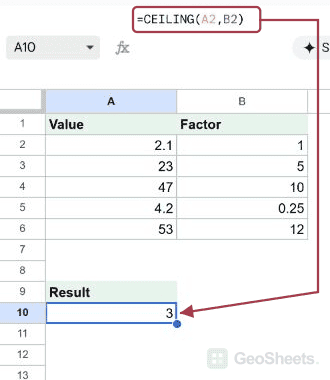
Enter this small dataset starting in A1. The first row contains headers. Keep the formula output separate from the input cells.
| Value | Factor |
|---|---|
| 2.1 | 1 |
| 23 | 5 |
| 47 | 10 |
| 4.2 | 0.25 |
| 53 | 12 |
Round a price up to a whole unit
Enter this formula in A10. A factor of one rounds 2.1 to three. Leaving the factor out has the same effect.
=CEILING(A2,B2)Result: 3.
Round to a multiple of five
Twenty-three rises to twenty-five. A value already on the multiple remains unchanged.
=CEILING(A3,B3)Result: 25.
Calculate required capacity
Forty-seven items require capacity for fifty when capacity comes in tens. This answer is capacity, not the number of boxes.
=CEILING(A4,B4)Result: 50.
Round to a quarter unit
The factor can be fractional. The next multiple of 0.25 at or above 4.2 is 4.25.
=CEILING(A5,B5)Result: 4.25.
Calculate the number of boxes
Divide the item count by capacity per box, then round up to a whole box. Capacity must be positive.
=CEILING(A6/B6,1)Result: 5.
Round a negative value with a positive factor
Google permits a positive or negative factor with a negative value. A positive factor rounds this value toward zero.
=CEILING(-4.2,1)Result: -4.
Round a negative value with a negative factor
A negative factor rounds this example away from zero. Do not apply a blanket rule that both signs must always match.
=CEILING(-4.2,-1)Result: -5.
Other Google Sheets articles you may also like