DECIMAL Function in Google Sheets

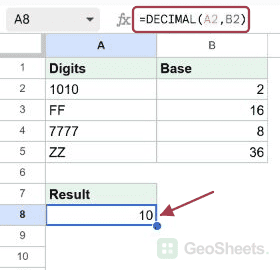
If you have a number written in binary, hexadecimal, or any other base and you want it as a normal base 10 number, the DECIMAL function in Google Sheets does the conversion for you. You hand it the value and tell it which base the value is written in.

In this article, I’ll show you how DECIMAL works and walk through four examples that cover the bases you’ll meet most often.

DECIMAL Function Syntax in Google Sheets

The DECIMAL function takes two arguments.

=DECIMAL(value, base)
  • value is the text representation of the number you want to convert. It should only contain digits valid for the base.
  • base is the base the value is written in. It can be any whole number from 2 to 36.

The result is always a regular base 10 number you can use in further calculations.

When to Use DECIMAL Function

Here are a few situations where DECIMAL earns its keep.

  • Converting binary values from a log or a device into readable numbers.
  • Turning hex color codes or memory addresses into base 10.
  • Reading octal file permissions as plain numbers.
  • Working with custom ID schemes that use base 36 to stay short.

Example 1: Convert Binary to Decimal

Let’s start with the most common case, base 2.

Below is the dataset, a column of binary numbers made up of ones and zeros.

Google Sheets: 'Binary' column A with numbers, empty 'Decimal' column B for results.

The goal is to convert each binary value into its base 10 equivalent.

Here is the formula:

=DECIMAL(A2, 2)
Google Sheets formula =DECIMAL(A2, 2) in B2, converting binary to decimal.

The second argument, 2, tells DECIMAL the value is binary. So 1010 becomes 10, and 101010 becomes 42. The top row returns 10.

Pro Tip: DECIMAL is the reverse of the BASE function. BASE turns a base 10 number into another base, and DECIMAL brings it back.

Example 2: Convert Hexadecimal to Decimal

Hexadecimal uses base 16, with letters A through F standing in for 10 through 15.

Below is the dataset, a column of hex values, some with letters in them.

Google Sheet with Hex values FF, 1A, 100, 7E, ABC; Decimal column empty.

The goal is to turn each hex value into a base 10 number.

Here is the formula:

=DECIMAL(A2, 16)
Google Sheets: DECIMAL(A2, 16) formula converts hex FF in A2 to 255 in B2.

Notice the same digits mean different things by base. The hex value 100 comes out to 256, not 100. FF is the largest two-digit hex value and returns 255.

Example 3: Convert Octal to Decimal

Octal is base 8, and you’ll still see it in things like Unix file permissions.

Below is the dataset, a column of octal numbers using digits 0 through 7.

Google Sheets dataset: Octal numbers in column A, with empty Decimal column B.

The goal is to read each octal value as a regular base 10 number.

Here is the formula:

=DECIMAL(A2, 8)
Google Sheets: Formula `=DECIMAL(A2, 8)` in B2 converts octal 17 to decimal 15.

In base 8, 17 becomes 15 and the permission-style value 7777 returns 4095. Each digit is worth eight times the one to its right.

Pro Tip: A digit that’s too big for the base causes a #NUM! error. An octal value can’t contain an 8 or 9, since base 8 only allows digits 0 through 7.

Example 4: Convert Base 36 to Decimal

Base 36 is the highest base DECIMAL supports, using digits 0 to 9 and then letters A to Z.

Below is the dataset, a column of base 36 values that mix digits and letters.

Google Sheets: Base 36 inputs Z, 10, 1Z, A0, ZZ. Decimal column has 10.

The goal is to convert each base 36 code into its base 10 value.

Here is the formula:

=DECIMAL(A2, 36)
Google Sheets: B2 shows `=DECIMAL(A2, 36)` converting 'Z' from base 36 to 35.

In base 36, the letter Z is the highest single digit and returns 35. The two-character value ZZ is the largest here and comes out to 1295.

Tips & Common Mistakes

  • The value goes in as text. DECIMAL reads the value as a string of digits, so leading zeros don’t matter and letters are fine for higher bases.
  • Stay inside the valid digit set. Each base only allows certain characters. A character outside the base’s range returns a #NUM! error.
  • The base must be 2 to 36. Anything below 2 or above 36 isn’t supported and will error out.

DECIMAL converts a number written in another base into a plain base 10 number, handling everything from binary up to base 36. You saw it work on binary, hexadecimal, octal, and base 36 values.

Once you know the base your data is in, the conversion is a one-line formula.

List of All Google Sheets Functions