
To insert a row below in Google Sheets, right-click the row number and choose Insert 1 row below. Existing rows below the insertion point shift down.
Insert a Row Below with the Menu
- Select a cell in the reference row. In this example, select A2.
- Right-click that row’s number to open the full row menu.
- Choose Insert 1 row below.
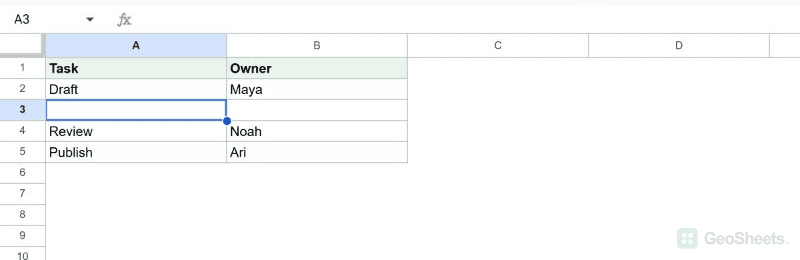
With Draft in row 2 and Review in row 3, this inserts a blank row 3 between them. Review moves to row 4; no existing task needs to be overwritten.
Keyboard Shortcuts for Windows and Mac
| Platform | Insert row below |
|---|---|
| Chrome on Windows | Alt + I, then R, then B |
| Other Windows browsers | Alt + Shift + I, then R, then B |
| Mac | Control + Option + I, then R, then B |
These are sequences: open the Insert menu with the first combination, release it, then press the remaining letters one at a time. Keyboard layouts and browser shortcuts can affect menu access.
Google’s keyboard shortcut documentation lists these menu sequences. If a browser intercepts the opening combination, use the visible Insert menu or the right-click command.
Use the Whole-Row Insert Shortcut
With a whole row selected, Ctrl + Alt + = on Windows or Command + Option + = on Mac inserts a row above that selection.
- Select a cell in the row immediately below the place where the new row should go.
- Press Shift + Space to select that entire row.
- Press the whole-row insert shortcut. The new row goes above the selected row, placing it below your original reference row.
The selection matters. Do not describe the whole-row shortcut as a guaranteed row insertion when only an individual cell is selected. The explicit menu command avoids that ambiguity.
Insert Several Rows Below
Select as many adjacent row numbers as you want to insert. Right-click the selection and choose the command that inserts that number of rows below.
For example, selecting three rows offers an insertion of three blank rows. Check the selected row numbers and command direction before proceeding.
Check Formatting and Formulas After Insertion
A new row can inherit neighboring formatting. Inspect its borders, fill, number formats, and validation before entering data. Do not assume every formula or custom format was copied into the new row.
Existing formula references may adjust when rows are inserted, but a new blank row does not necessarily contain the formulas you need. Copy or extend those formulas deliberately and check the resulting ranges.
If the row lands in the wrong place, use Undo immediately. Protected sheets or ranges may prevent insertion; editing permission is required for the affected structure.
Other Google Sheets articles you may also like