
If you want a single function that can sum, average, count, or find the max of a range, the SUBTOTAL function in Google Sheets is the one to use. You pick the operation by passing a function code as the first argument.
In this article, I’ll walk through how SUBTOTAL works, what each function code does, and five examples that cover the patterns you’ll actually use.
SUBTOTAL Function Syntax in Google Sheets
Here is the syntax of the SUBTOTAL function in Google Sheets.
=SUBTOTAL(function_code, range1, [range2, ...])
- function_code is a number from 1 to 11 (or 101 to 111) that tells SUBTOTAL which operation to run. For example, 9 means sum, 1 means average, 4 means max.
- range1 is the first range of values you want to aggregate.
- [range2, …] are optional extra ranges. You can pass as many as you need and SUBTOTAL aggregates across all of them.
The 1 to 11 codes include rows that are manually hidden. The 101 to 111 codes skip manually hidden rows. Both versions skip rows hidden by a filter view.
When to Use SUBTOTAL Function
Here are some situations where SUBTOTAL is a better fit than a plain aggregate.
- Building a totals row on top of filtered data, where you want the total to update as the filter changes.
- Aggregating a range that already contains other SUBTOTAL formulas. SUBTOTAL ignores nested SUBTOTALs, which keeps grand totals clean.
- Switching between sum, average, count, max, and min from a dropdown without rewriting the formula. Just change the code.
- Replacing several different aggregate functions with one consistent pattern across a sheet.
Example 1: Total Sales With Function Code 9 (SUM)
Let’s start with the most common SUBTOTAL pattern.
Below is the dataset. Column A has five salesperson names and column B has the sales amount for each.
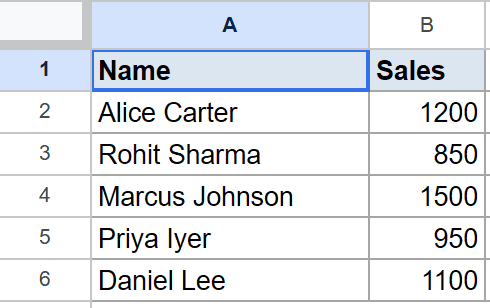
You want one cell that adds up all five sales values.
Here is the formula:
=SUBTOTAL(9, B2:B6)
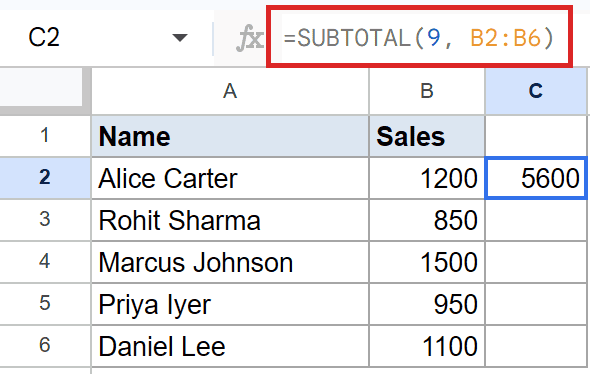
The first argument, 9, is the function code for sum. SUBTOTAL then adds the five values in B2:B6 and the total is 5600.
This is functionally equivalent to a plain SUM on the same range. The reason to use SUBTOTAL instead is when the range might get filtered later, or when you plan to stack other SUBTOTAL rows above it.
Pro Tip: Use function code 109 instead of 9 if you also want SUBTOTAL to skip rows you’ve manually hidden. The 100-series codes ignore both filtered rows and hand-hidden rows.
Example 2: Average Score With Function Code 1 (AVERAGE)
Swap the code and you get a different aggregation, with no other change to the formula.
Below is the dataset. Column A lists five students and column B holds their test scores.
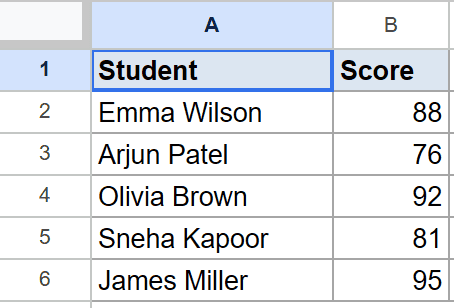
You want the average score across the five students.
Here is the formula:
=SUBTOTAL(1, B2:B6)
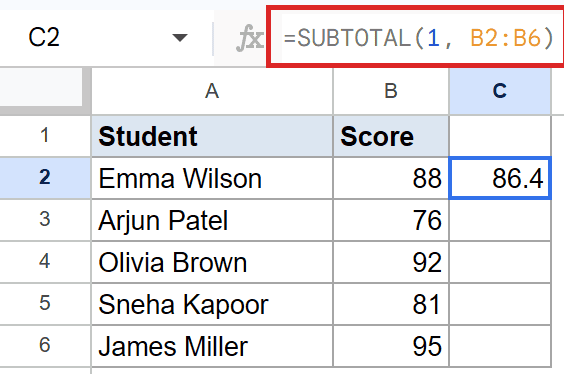
Function code 1 tells SUBTOTAL to compute the average. It adds the five scores, divides by five, and the answer is 86.4.
This matches what a plain AVERAGE call would produce. The advantage is the same as Example 1: if you later hide a row or apply a filter, SUBTOTAL recalculates against only the visible rows when you use the 100-series version.
Example 3: Count Entries With Function Code 3 (COUNTA)
Function code 3 counts every non-empty cell, which is the move when the values are text rather than numbers.
Below is the dataset. Column A lists five attendees and column B has their RSVP status as either Confirmed or Pending.
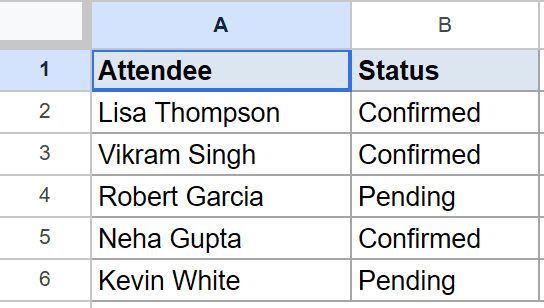
You want to count how many attendees are in the list.
Here is the formula:
=SUBTOTAL(3, A2:A6)
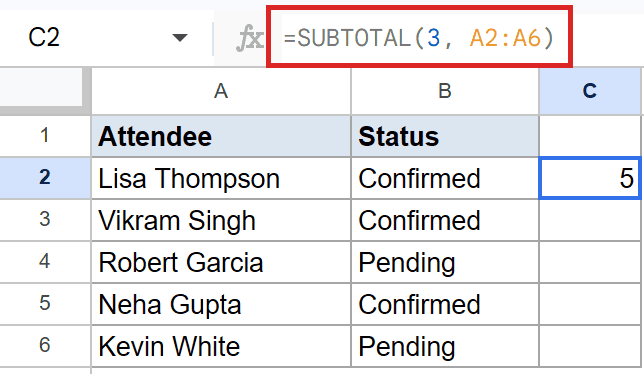
Function code 3 maps to COUNTA, which counts non-empty cells regardless of type. SUBTOTAL counts the five names in A2:A6 and the result is 5.
If you’d rather count only numeric entries, use function code 2 instead. Code 2 maps to plain COUNT and skips any text values in the range.
Example 4: Highest Revenue With Function Code 4 (MAX)
Function code 4 picks the largest value in the range.
Below is the dataset. Column A has five region names and column B has the revenue for each region.
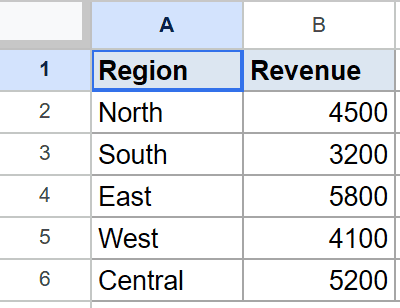
You want the biggest revenue number out of the five regions.
Here is the formula:
=SUBTOTAL(4, B2:B6)
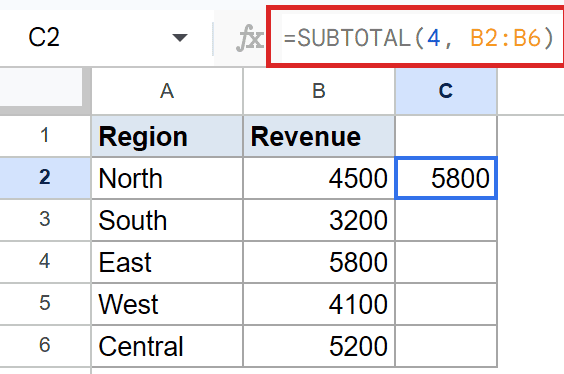
Function code 4 maps to MAX. SUBTOTAL scans B2:B6 and picks the largest number, which is 5800 (East).
To find the smallest value instead, swap the 4 for a 5. Code 5 maps to MIN and works the same way over the same range.
Pro Tip: The full code map is 1 AVERAGE, 2 COUNT, 3 COUNTA, 4 MAX, 5 MIN, 6 PRODUCT, 7 STDEV, 8 STDEVP, 9 SUM, 10 VAR, 11 VARP. Add 100 to any of these to also skip manually hidden rows.
Example 5: Sum Across Multiple Ranges in One SUBTOTAL
SUBTOTAL accepts more than one range, so a single formula can total values pulled from two separate columns.
Below is the dataset. Column A lists five regions, column B has January sales, and column C has February sales.
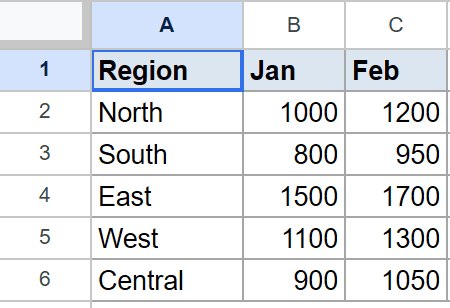
You want the combined two-month total across all regions in one cell.
Here is the formula:
=SUBTOTAL(9, B2:B6, C2:C6)
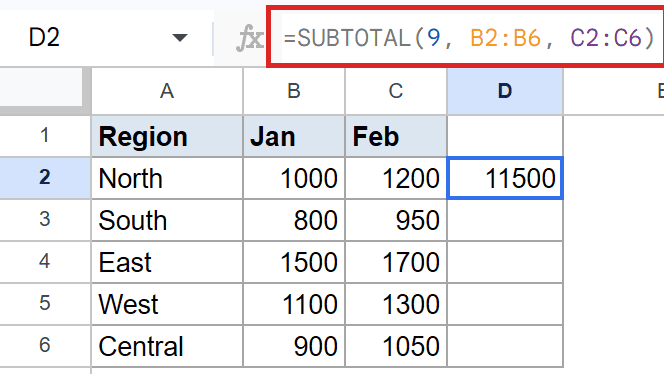
How this formula works:
- Function code 9 sets the operation to sum.
- The first range, B2:B6, contributes the January values.
- The second range, C2:C6, contributes the February values.
- SUBTOTAL adds every cell across both ranges and the total is 11500.
You can keep adding more ranges with extra commas. The ranges don’t need to be the same size or even adjacent, which is handy when your data is split across non-contiguous blocks.
If you need to total only the rows that meet a condition, reach for SUMIFS instead, since SUBTOTAL has no built-in criteria argument.
Tips & Common Mistakes
- SUBTOTAL ignores nested SUBTOTALs. If your range already contains SUBTOTAL formulas (for example, sub-group totals), a grand-total SUBTOTAL at the bottom skips those rows so you don’t double-count. A plain SUM would add them in.
- 1 to 11 vs 101 to 111. The 100-series codes skip rows you manually hide via right-click. The 1 to 11 codes do not. Both versions skip rows hidden by a filter view, so the difference only matters when you hide rows by hand.
- Function code is just a number. Beginners sometimes pass the function name as text (
"SUM"instead of9). SUBTOTAL only accepts the numeric code. Pass the wrong type and you get a#VALUE!error.
That’s how the SUBTOTAL function works in Google Sheets.
It’s one of the few functions that bundles eleven different aggregations behind a single signature, and it’s the right pick whenever your data might get filtered, hidden, or extended with more sub-totals later on.
List of All Google Sheets Functions
Related Google Sheets Functions / Articles: