
Select the cells, then choose Insert > Checkbox to add checkboxes in Google Sheets. Press Space to toggle the active checkbox between checked and unchecked.
In Chrome on Windows, you can also press Alt + I, release the keys, then press X. This is a menu sequence, not a single direct shortcut.
Insert checkboxes from the menu
- Select the cell or range that should contain checkboxes.
- Choose Insert > Checkbox.
- Click a checkbox, or select its cell and press Space, to change its state.
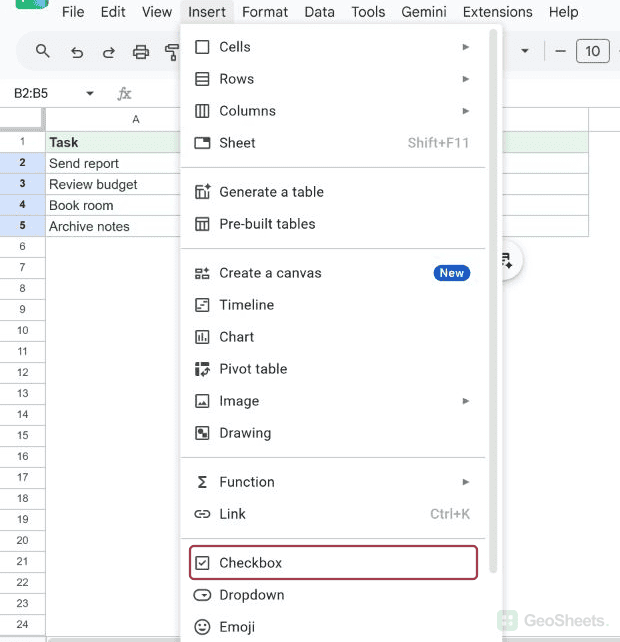
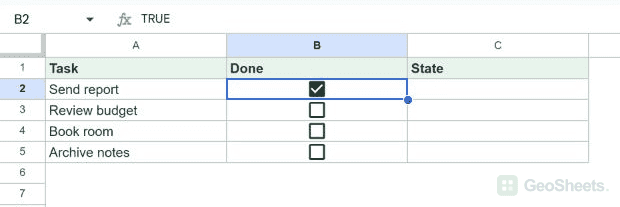
Our Windows Chrome test inserted checkboxes in B2:B5. Pressing Space in B2 checked that box while B3:B5 remained unchecked.
Use the checkbox keyboard sequence
Chrome on Windows
Alt + I, X
- Select the cells.
- Hold Alt and press I to open Insert, then release both keys.
- Press X to choose Checkbox.
We tested this sequence in Chrome on Windows. It inserted native checkboxes in the selected cells.
Mac and other browsers
Google documents Control + Option + I for opening Insert on Mac. Other Windows browsers can use Alt + Shift + I.
The final menu letter can vary with the interface language. Read the underlined command in the open Insert menu, or click Checkbox. We did not test the sequence on Mac.
Understand TRUE and FALSE checkbox values
A standard checked checkbox has the value TRUE. An unchecked checkbox has the value FALSE.
That makes a checkbox usable in formulas. If B2 holds a checkbox, =IF(B2,"Done","Open") returns Done when checked and Open when unchecked.
Google’s checkbox instructions also note that checkboxes can work with charts, filters, pivot tables, and functions.
Create checkboxes with custom values
- Select the cells that should contain checkboxes.
- Choose Data > Data validation, then add a rule for the selected range.
- Set Criteria to Checkbox.
- Enable Use custom cell values.
- Enter the checked and unchecked values, then save the rule.
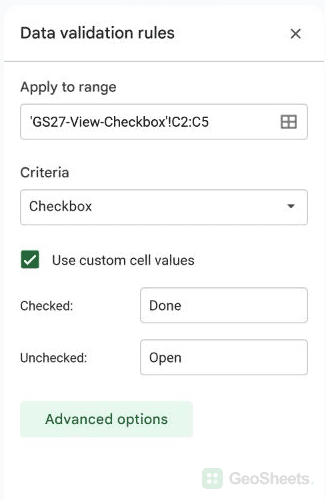
We set C2:C5 to use Done when checked and Open when unchecked. After toggling C2, its value was Done while C3:C5 remained Open.
Remove checkboxes
Select the checkbox cells and press Delete. Keep task names or other source data in separate cells so removing the checkboxes does not affect those labels.
Other Google Sheets articles you may also like