
Use COUNTIF to count checked boxes. For default checkboxes, count the cells that hold TRUE. The count updates as you check or uncheck the boxes.
If the boxes use custom values such as Yes and No, count the checked value instead of TRUE.
Count checked boxes with COUNTIF
Here is a five-task checklist. Column B contains default checkboxes; three are checked. Column C records each task’s team.
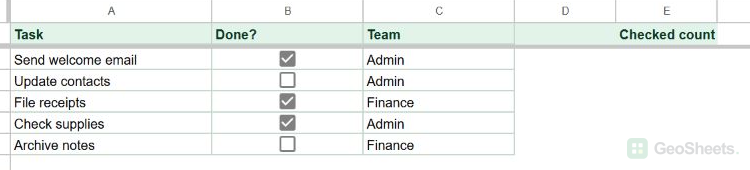
Here is how to place a live checked count beside this checklist.
1. Click E2, outside the checkbox range. Enter this formula:
=COUNTIF(B2:B6,TRUE)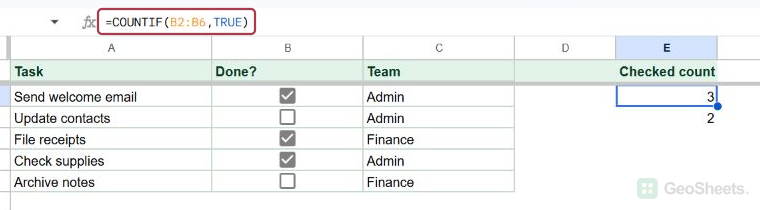
B2:B6 is the range to examine. TRUE matches the checked default boxes. Unchecked default boxes hold FALSE, so they do not contribute to the count.
Press Enter, then click a blank cell to see the result without a selection covering it. E2 shows 3 for the three checked tasks.
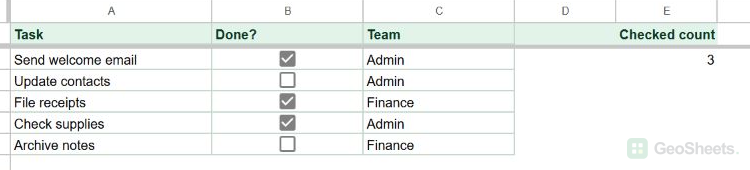
Check or uncheck a box to change the count. Google Sheets recalculates the formula from the current values in B2:B6.
Keep the formula outside B2:B6. Putting it inside the checkbox range would replace one of the task’s checkbox cells.
Count checked boxes for one team
The same checklist can answer a narrower question: how many Admin tasks are checked? Column C contains the team names, and the checked Admin tasks are in rows 2 and 5.
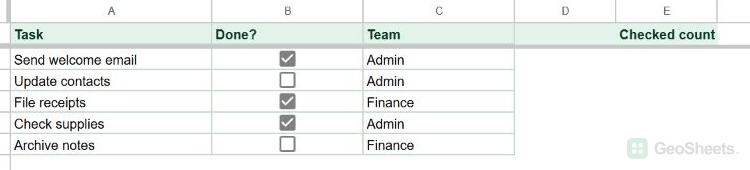
Use two conditions to count only the checked Admin tasks.
1. Click E3 and enter the two-condition formula:
=COUNTIFS(B2:B6,TRUE,C2:C6,"Admin")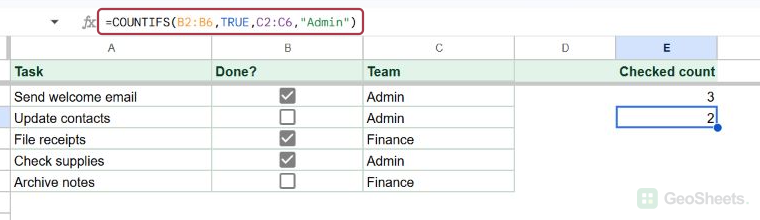
The first pair checks whether a box is TRUE. The second pair checks whether the team is Admin. Both ranges cover rows 2 through 6.
Press Enter and move the selection away. E3 shows 2, counting only rows that meet both conditions.
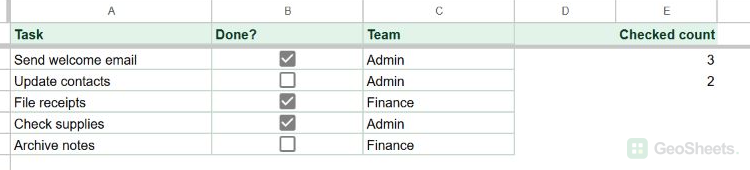
If you extend the checklist, extend both ranges to the same ending row. Google documents that COUNTIFS criterion ranges must have the same dimensions.
Count checkboxes with custom checked values
Some checkboxes store words rather than TRUE and FALSE. In this second checklist, checked boxes are configured as Yes and unchecked boxes as No.
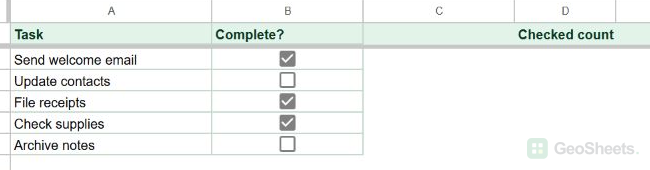
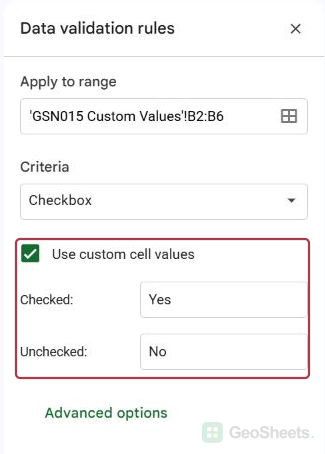
Count the configured checked word instead of TRUE.
1. Click D2 and enter a formula that matches the configured checked value:
=COUNTIF(B2:B6,"Yes")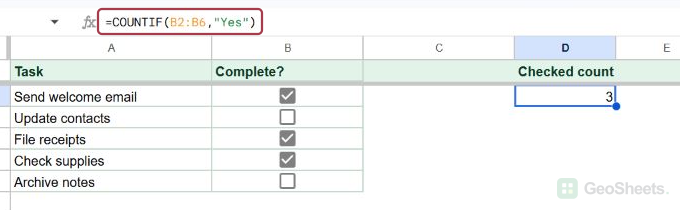
Press Enter and move the selection away. D2 shows 3 for the three Yes boxes.
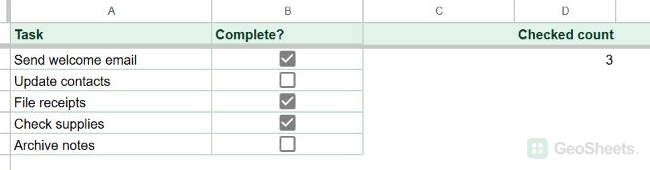
A TRUE criterion will not count these Yes values. If your rule uses a different checked word, replace "Yes" with that word. Google Sheets also permits a custom checkbox with a blank unchecked value.
For the function syntax and checkbox setup options, see Google’s COUNTIF and checkbox documentation.
Other Google Sheets articles you may also like