
Select your numeric dates and press Ctrl + Shift + 3 to display them as dates in Google Sheets. The shortcut uses Control on both Windows and Mac.
Format as date keyboard shortcut
Windows: Ctrl + Shift + 3
Mac: Control + Shift + 3
Turn serial numbers into readable dates
- Select the date cells or range.
- Press Ctrl + Shift + 3.
- Check that the cells show the intended calendar dates.
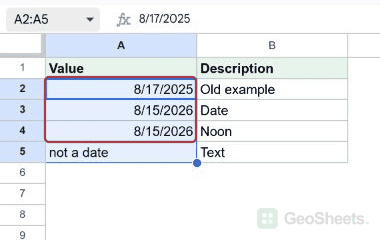
For August 15, 2026, the serial number is 46249. In our US-locale test, the shortcut displayed it as 8/15/2026.
The number 45886 represents August 17, 2025. Formatting that number cannot turn it into an unrelated date; the value itself must be correct.
A formula such as =DATE(2026,8,15) supplies the same underlying date value. The formatting controls how that value appears.
Choose a different date pattern
Use Format > Number > Date for a standard date display, or Date time when the time should be visible too.
For another layout, choose Format > Number > Custom date and time. Select or edit a pattern, then click Apply.
The spreadsheet’s locale influences default date conventions. Check File > Settings when imported dates use a different day/month order. Do not change a shared file’s locale merely to format one cell.
Keep the stored time and numeric value
A date-only format hides the time display; it does not remove the fractional day. Our value 46249.5 displayed as 8/15/2026 while retaining its noon time component.
To display the number again, use Ctrl + Shift + 1 on Windows or Control + Shift + 1 on Mac. This changes the number format without removing a formula.
Sorting uses the underlying date-time numbers. Two entries displayed as the same date can therefore sort by their hidden time fractions.
When the cell is text instead of a date
Applying date formatting does not convert arbitrary text into a date. In the test, “not a date” remained unchanged after the shortcut.
For imported date text, first convert or re-enter it using an unambiguous method, such as DATE with separate year, month, and day inputs. Applying a display format comes afterward.
Use a custom number format when you need a different appearance while preserving a numeric date. TEXT produces a text result, which is a different choice for later calculations.
Other Google Sheets articles you may also like