
FORMULATEXT returns the formula shown in a referenced cell’s formula bar as text. Use it beside a calculation to explain the method without replacing the calculated result.
FORMULATEXT function syntax
=FORMULATEXT(cell)- cell: a reference to the cell containing the formula.
- A plain value or empty cell returns #N/A.
- For a range argument, only its top-left cell is inspected.
Set up the example data
Enter this dataset starting in A1. The first row contains headings. Keep the result area separate from the source table.
| Metric | Calculation |
|---|---|
| Add | =10+20 |
| Multiply | =100*5 |
| Average | =AVERAGE(4,6,8) |
| Plain value | 100 |
Show the formula behind a result
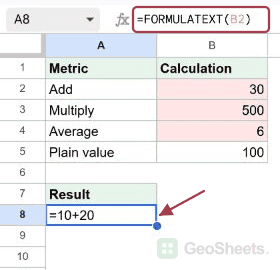
Enter this formula in A8. B2 contains =10+20 and returns 30. FORMULATEXT shows =10+20 as text, leaving the source calculation intact.
=FORMULATEXT(B2)Result: =10+20.
Document a calculation column
Point the formula at the next row to display its calculation. For a real audit column, start beside the first result and fill down using a relative reference.
=FORMULATEXT(B3)Result: =100*5.
Label a cell without a formula
B5 holds the plain number 100. IFNA catches FORMULATEXT’s #N/A and supplies a clearer label. Use ISFORMULA when you only need a TRUE/FALSE check.
=IFNA("Formula: "&FORMULATEXT(B5),"No formula")Result: No formula.
Expose a totals formula
Enter the quantities table at A20. The total in B24 is driven by SUM. Referencing it with FORMULATEXT makes the calculation visible below or beside the report.
| Item | Quantity |
|---|---|
| Pens | 10 |
| Pads | 20 |
| Files | 30 |
| Total | =SUM(B21:B23) |
=FORMULATEXT(B24)Result: =SUM(B21:B23).
Show the formula and its answer together
The ampersands join the formula text, a separator and the calculated result. For dates or percentages, format the result portion with TEXT rather than assuming concatenation preserves its appearance.
=FORMULATEXT(B2)&" = "&B2Result: =10+20 = 30.
Remove the leading equals sign
MID starts at the second character and takes the remaining text. Use this for a label that needs the formula body, rather than a string meant to be pasted back as a formula.
=MID(FORMULATEXT(B2),2,LEN(FORMULATEXT(B2)))Result: 10+20.
Flag formulas that do not begin with SUM
This condition is TRUE for B2 because =10+20 does not begin with =SUM(. In conditional formatting, apply it to B2:B5 using a custom formula, keeping $B fixed and row 2 relative.
=IFNA(LEFT(UPPER(FORMULATEXT($B2)),5)<>"=SUM(",FALSE)Result: TRUE.
Other Google Sheets articles you may also like