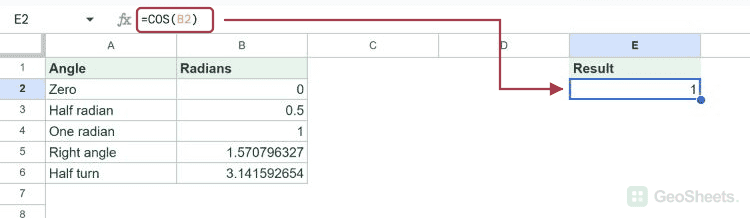
COS Function in Google Sheets

The COS function gives you the cosine of an angle. Feed it an angle in radians and you get a number between -1 and 1 back.

This guide walks through four examples, from plain radian values to converting degrees and working out a horizontal distance. By the end you will know exactly when to reach for COS.

COS Function Syntax in Google Sheets

Here is how you write the COS function.

=COS(angle)
  • angle is the angle in radians. This is the only argument, and it is required.

When to Use COS Function

  • You need the cosine of an angle for a trig calculation.
  • You are breaking a vector or a force into its horizontal component.
  • You want to model something that repeats in a wave, like a sound or a signal.
  • You are checking textbook angles like 30, 45, or 60 degrees.
  • You are building a geometry or engineering sheet that mixes angles and distances.

Example 1: Cosine of Plain Radian Values

Let’s start with the simplest case, plain radian values typed straight into a column.

Below is the dataset. Column A holds five angles in radians (0, 0.5, 1, 1.5, and 2), and column B is empty, ready for the cosine.

Google Sheet with "Angle (radians)" column (0 to 2) and empty "Cosine" column.

I want the cosine of each radian value in column A.

Here is the formula:

=COS(A2)
Google Sheets: Formula `=COS(A2)` in B2 calculates cosine of angle in radians.

COS reads the radian value in A2 and returns its cosine. At 0 the cosine is 1, the highest it can ever go.

As the angle climbs, the result drops. By 1 radian you get about 0.5403, and by 2 radians the cosine has gone negative at roughly -0.4161. That sign flip is normal once you pass a quarter turn.

Pro Tip: Instead of filling the formula down, you can get the whole column in one shot with ARRAYFORMULA: =ARRAYFORMULA(COS(A2:A6)). Same result, single formula.

Example 2: Cosine of Degrees Using RADIANS

Most people think in degrees, so this one matters.

Below is the dataset. Column A lists angles in degrees (30, 45, 60, 120, and 180), with column B left blank for the cosine.

Google Sheet showing Angle (degrees) data 30-180 and an empty Cosine column.

I want the cosine of each angle, but the values are in degrees, not radians.

Here is the formula:

=COS(RADIANS(A2))
Google Sheets: Formula =COS(RADIANS(A2)) in B2, calculating cosine from degrees.

COS only understands radians, so RADIANS converts the degree value first, then COS does the rest.

The numbers line up with what you would expect. 30 degrees gives about 0.8660, 60 degrees gives 0.5, and 180 degrees lands exactly on -1. Skip the RADIANS step and these answers would all be wrong.

Example 3: Cosine of PI Fractions

Sometimes your angle comes from PI itself rather than a typed decimal.

Below is the dataset. Column A names the fraction (PI/6, PI/4, PI/3, 2*PI/3), column B holds the actual radian value from a PI formula, and column C is empty.

Google Sheet with "Fraction of PI" and "Radian Value" data; "Cosine" column is blank.

I want the cosine of each radian value sitting in column B.

Here is the formula:

=COS(B2)
Google Sheets: Cell C2's formula bar shows =COS(B2) for cosine calculation.

Because B2 already holds a radian value built from PI(), you pass it straight into COS with no conversion needed.

PI/6 returns about 0.8660 and PI/4 returns about 0.7071. PI/3 comes out at 0.5, while 2*PI/3 crosses into negative territory at roughly -0.5. This is the cleanest way to hit standard angles without rounding errors.

Example 4: Horizontal Distance From an Angle

Here is a real one you might actually build.

Below is the dataset. Column A names the ramp, column B has the distance in meters, column C has the angle in degrees, and column D is empty for the horizontal distance.

Google Sheet with Path, Distance (m), Angle (degrees) data. Horizontal (m) column is empty.

I want the horizontal part of each ramp’s distance, which is the distance times the cosine of the angle.

Here is the formula:

=B2*COS(RADIANS(C2))
Google Sheets: D2 formula `=B2*COS(RADIANS(C2))` calculates horizontal distance.

How this formula works:

  • RADIANS(C2) turns the angle in degrees into radians.
  • COS finds the cosine of that angle.
  • Multiplying by the distance in B2 gives the horizontal component.

Ramp A travels 10 meters at 30 degrees, so the horizontal distance is about 8.66 meters. Ramp B covers roughly 5.66 meters, and Ramp D sits flat at 0 degrees, so all 5 meters of it are horizontal.

Tips & Common Mistakes

  • COS expects radians, not degrees. This is the number one mistake. If you type =COS(60) expecting the cosine of 60 degrees, you get the cosine of 60 radians instead. Wrap your degree value in RADIANS first.
  • The result always stays between -1 and 1. If you see a number outside that range, you have multiplied by something else or grabbed the wrong cell.
  • Watch the sign. Cosine goes negative once the angle passes 90 degrees (PI/2 radians), so a negative result is often correct, not a bug.

COS is a small function with one job, returning the cosine of an angle in radians. The trick is remembering to convert degrees with RADIANS before you hand the value over. Once that habit sticks, the rest is easy.

List of All Google Sheets Functions

Related Google Sheets Functions / Articles: