
RANDBETWEEN returns a random whole number between two bounds, including both endpoints. It recalculates, so repeated results are possible and a draw is not a permanent ID.
RANDBETWEEN function syntax
=RANDBETWEEN(low, high)- low and high: numeric lower and upper bounds, supplied directly or through cell references.
- Decimal bounds are allowed: the lower limit rounds upward and the upper limit rounds downward to whole numbers.
- Prefer whole-number bounds with low less than or equal to high. Both endpoints are eligible.
Set up the example data
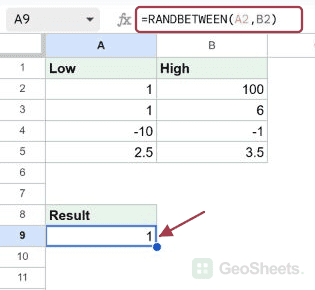
Enter this dataset starting in A1. The first row contains headings. Keep the result area separate from the source table.
| Low | High |
|---|---|
| 1 | 100 |
| 1 | 6 |
| -10 | -1 |
| 2.5 | 3.5 |
Keep a random draw from changing
RANDBETWEEN recalculates when the sheet changes. To keep one draw, copy its cell, select the destination and choose Edit > Paste special > Values only.
On Windows, use Ctrl+Shift+V for the paste step. The destination stores the current number instead of the formula. Copying to another cell preserves the original formula for future draws.
Generate a random integer from cell bounds
Enter this formula in A9. A2 contains 1 and B2 contains 100, so the output is a whole number from 1 through 100.
Copy the formula with fixed references if all trials need the same bounds.
=RANDBETWEEN(A2,B2)Result: a whole number from 1 through 100; your draw can differ from the screenshot.
Simulate a six-sided die
Enter this formula beside a player name and copy it to other player rows. Each formula produces one roll. Change 6 to 20 for a twenty-sided die.
=RANDBETWEEN(1,6)Result: one of 1, 2, 3, 4, 5 or 6.
Generate negative integers
The same function works with negative bounds. Here, -10 is the lower limit and -1 is the upper limit.
=RANDBETWEEN(A4,B4)Result: an integer from -10 through -1.
Understand decimal bounds
The interval from 2.5 to 3.5 contains only one integer: 3. The lower boundary rounds up and the upper boundary rounds down. This is not simple decimal truncation.
=RANDBETWEEN(A5,B5)Result: 3.
Pick a random name from a list with gaps
Enter the employee list starting at A20. FILTER first removes blank and empty-text entries. ROWS then counts the filtered list, and INDEX returns the randomly selected position.
| Employee |
|---|
| Maya |
| Leo |
| Ana |
| Omar |
=LET(names,FILTER(A21:A26,A21:A26<>""),INDEX(names,RANDBETWEEN(1,ROWS(names))))Result: Maya, Leo, Ana or Omar; no blank row is eligible.
Generate a random date in 2026
DATE supplies the serial numbers for January 1 and December 31. After entering the formula, choose Format > Number > Date to display a date instead of a serial number.
=RANDBETWEEN(DATE(2026,1,1),DATE(2026,12,31))Result: a date from January 1 through December 31, 2026.
Generate amounts in hundredths
Generate an integer from 100 through 1000, then divide by 100. The possible results range from 1.00 through 10.00 in steps of 0.01. Format the cell with two decimal places.
=RANDBETWEEN(100,1000)/100Result: an amount from 1.00 through 10.00, in steps of 0.01.
Other Google Sheets articles you may also like