
DEGREES converts radians to degrees in Google Sheets. For example, =DEGREES(PI()) returns 180. Use it when an angle is measured in radians or an inverse trigonometric function returns a radian result.
Convert Radians to Degrees
Enter this dataset starting in A1. Leave cells marked “(blank)” empty.
| Angle | Radians |
|---|---|
| Half circle | =PI() |
| Right angle | =PI()/2 |
| Sixth circle | =PI()/3 |
| Clockwise right | =-PI()/2 |
| Full circle | =2*PI() |
Enter this formula in E2:
=DEGREES(B2)The selected formula returns 180. PI() supplies a half-circle angle in radians. Using PI() is more accurate than typing a shortened approximation such as 3.14.
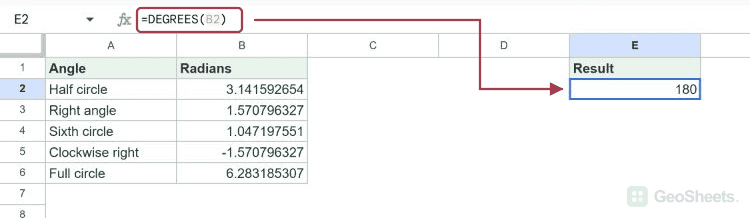
The other radian expressions convert to 90, 60, -90, and 360 degrees. These are unit conversions: DEGREES does not calculate a sine, cosine, or tangent.
DEGREES Function Syntax
=DEGREES(angle)angle is a radian value or a reference containing it. DEGREES multiplies the radian measure by 180 divided by pi. Negative inputs stay negative; values beyond one revolution are not automatically normalized.
If the input is already in degrees, do not apply DEGREES again. That would interpret the number as radians and produce the wrong angle.
Convert a Whole Range
=ARRAYFORMULA(DEGREES(B2:B6))Enter this in an empty output column, such as H12 in the test sheet. It returns 180, 90, 60, -90, and 360 down five cells. Leave the output cells empty so the array can expand.
Use a bounded input range when you do not want unused rows converted. The test =DEGREES(H1) returned 0 for a genuinely blank cell, so a blank input does not automatically stay blank.
Convert an Inverse Trigonometric Result
=DEGREES(ASIN(0.5))This returns approximately 30. ASIN calculates an angle in radians from the sine ratio; DEGREES converts that angle to degrees. An input of -1 returns -90 degrees.
ASIN requires an input from -1 through 1. =DEGREES(ASIN(2)) returns #NUM!; changing the output unit cannot repair an invalid trigonometric input.
Convert Degrees to Radians Before SIN or COS
=COS(RADIANS(60))This returns approximately 0.5. RADIANS converts the input angle before COS calculates the cosine. Applying DEGREES to a cosine result would be incorrect because that result is a ratio, not an angle.
=DEGREES(RADIANS(90))This round trip returns 90. It illustrates the opposite directions of the two conversion functions. Small floating-point differences can appear in calculated results; use ROUND when your report needs a specific precision.
Check Imported Angle Values
The live test accepted numeric text: =DEGREES("1") returned approximately 57.2958. Nonnumeric text, such as =DEGREES("text"), returned #VALUE!. Verify both the input type and its unit when importing data.
To show a degree symbol while retaining a numeric result, use an appropriate custom number format rather than appending text to the calculation. The symbol labels the unit; it does not perform the conversion.
Other Google Sheets articles you may also like