
SUMPRODUCT multiplies matching values and adds the products. It can total quantity times price, calculate a weighted average, or combine conditions without a helper column.
SUMPRODUCT function syntax
=SUMPRODUCT(array1, [array2, ...])- array1: first range or array.
- Additional arrays: matching dimensions, paired by position.
Set up the example data
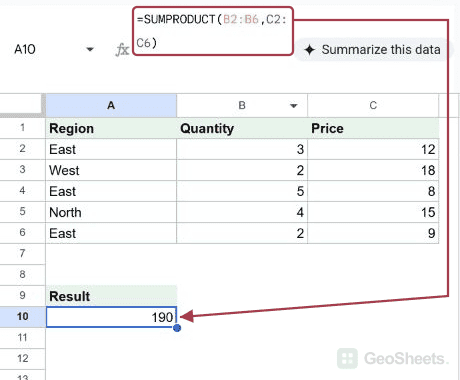
Enter this small dataset starting in A1. The first row contains headers. Keep the formula output separate from the input cells.
| Region | Quantity | Price |
|---|---|---|
| East | 3 | 12 |
| West | 2 | 18 |
| East | 5 | 8 |
| North | 4 | 15 |
| East | 2 | 9 |
Total quantity times price
Enter the formula in A10. The line totals are 36, 36, 40, 60 and 18. SUMPRODUCT adds them to give the full order value.
=SUMPRODUCT(B2:B6,C2:C6)Result: 190.
Calculate a weighted average
Quantity supplies the weight for each unit price. The total value of 190 divided by 16 units gives the quantity-weighted average unit price.
=SUMPRODUCT(B2:B6,C2:C6)/SUM(B2:B6)Result: 11.875.
Sum orders that meet a condition
The region comparison becomes ones and zeros through multiplication. Only East line totals remain: 36, 40 and 18. For simpler conditional totals, SUMIF or SUMIFS may be easier to read.
=SUMPRODUCT((A2:A6="East")*B2:B6*C2:C6)Result: 94.
Count rows that meet two conditions
Multiplying two logical arrays keeps a one only where both tests pass. Two East rows have quantities above two.
=SUMPRODUCT((A2:A6="East")*(B2:B6>2))Result: 2.
Understand text in numeric arrays
In this separate-array example, the nonnumeric text contributes zero. The two numeric entries contribute two times four.
=SUMPRODUCT({2;"pending"},{4;5})Result: 8.
Other Google Sheets articles you may also like